Add Test Center
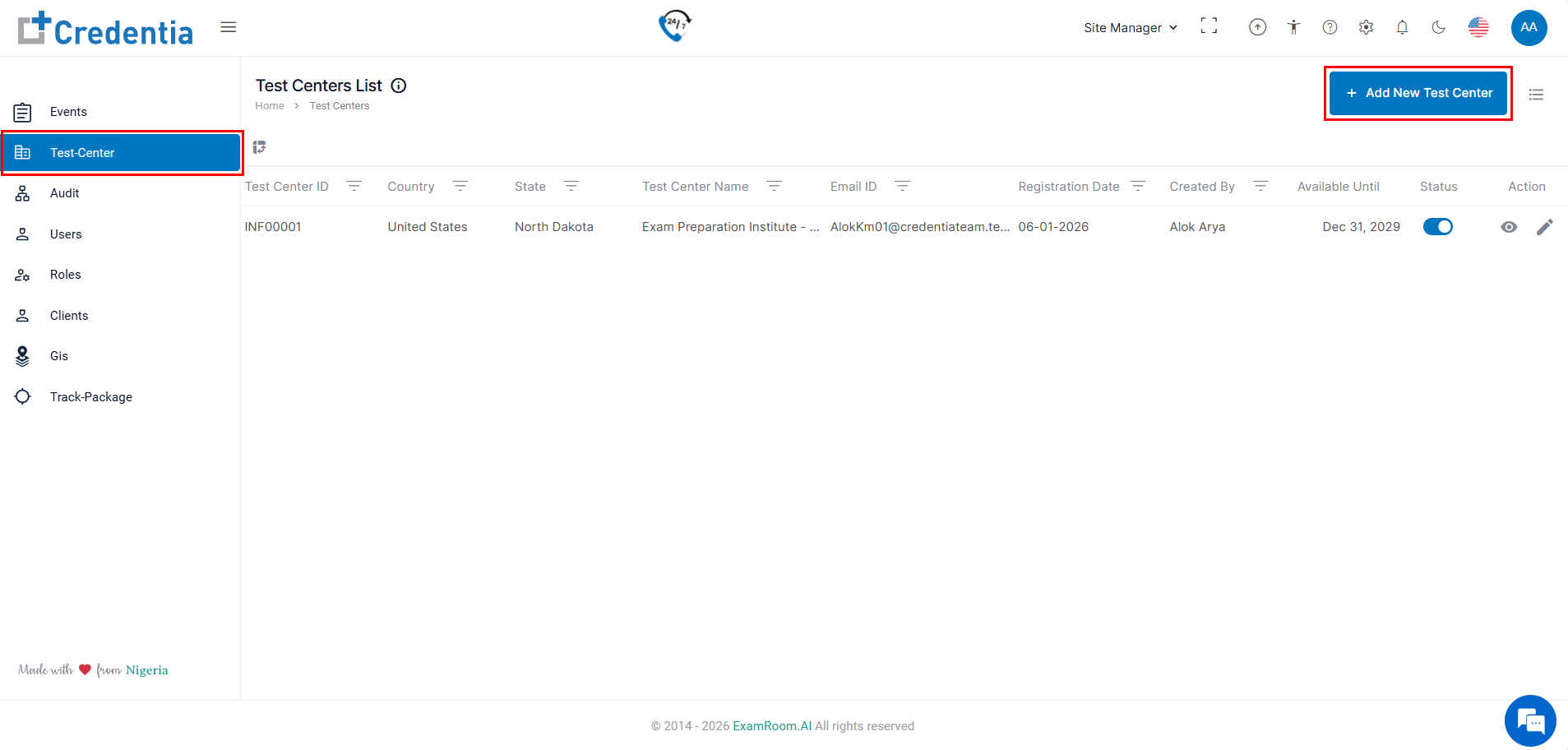
The Credentia Test Site Management system is used to manage multiple test centers. After the first test center goes live, the site manager can add various test centers.
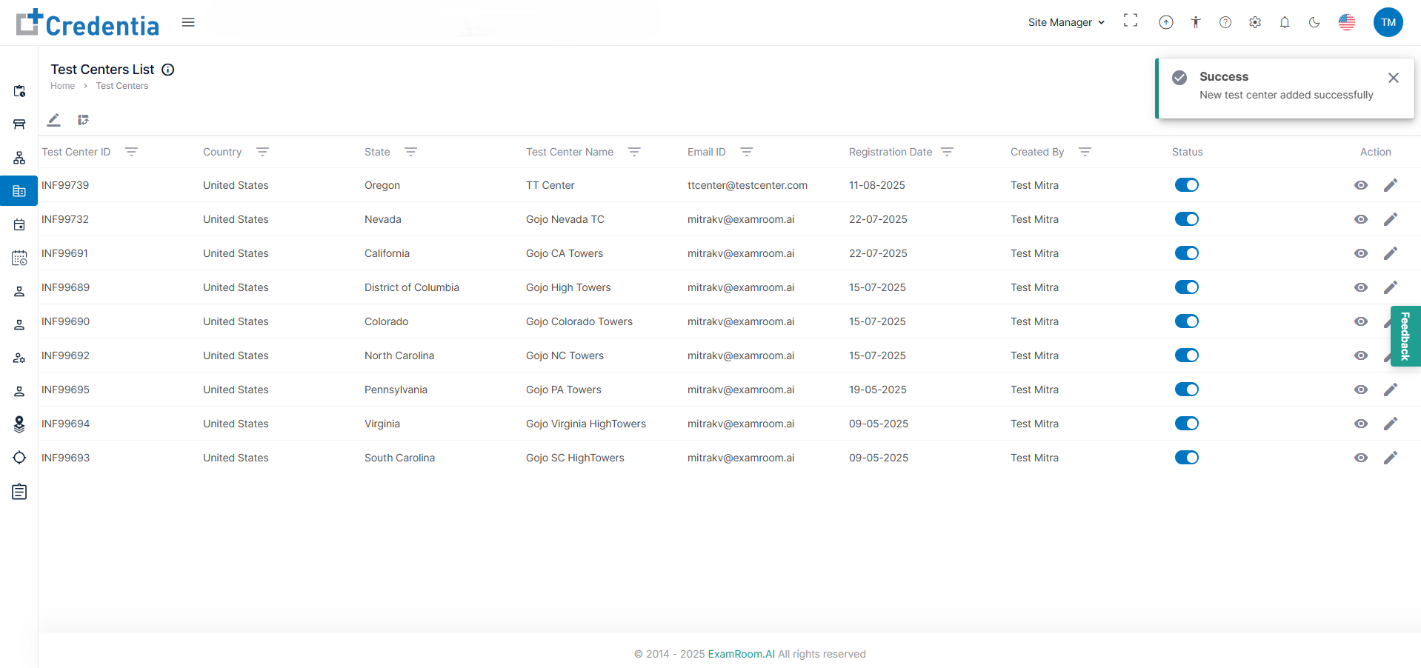
The list of test centers allows you to add new test centers to your test site and manage all existing centers.
Note:
- Use Filters to search for specific Test Center details.
- Click the hamburger icon to customize the display sections.
- If you are adding the first test center under your test site, check the onboarding Dashboard and complete the initial application process. See Onboarding Dashboard.
- Click Add New Test Center to complete the application form to add a new test center to TSM.
- In the Add Test Center application form, you are required to provide details including Basic Information, Test Center Information, Address Information, Accommodation details, and supporting documents.
Test Center Information – Basic Information
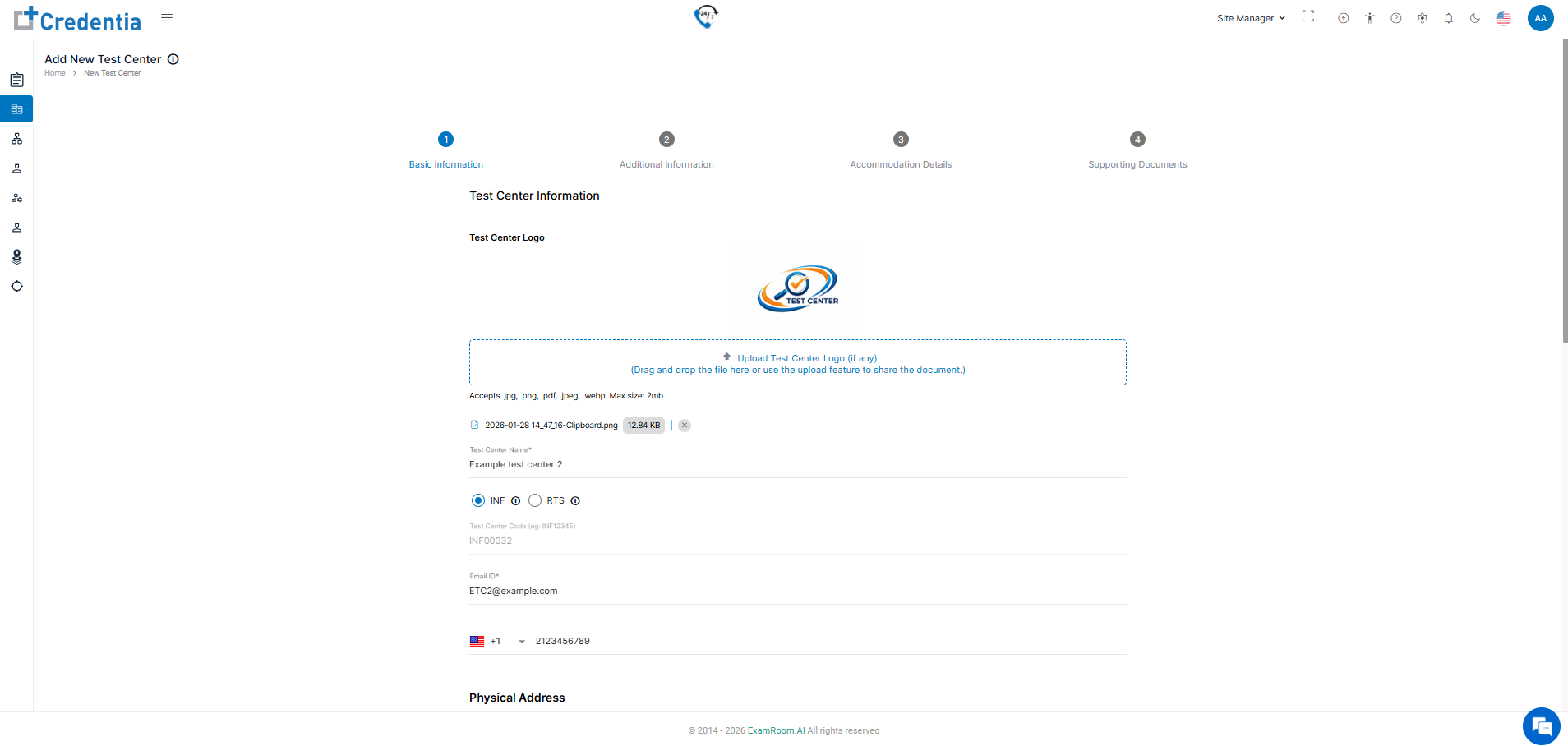
- In Basic Information, fill out all the mandatory fields like
- Click the Upload Test Center Logo option to upload the logo for your test center.
- Enter the name of the Test Center in the Test Center Name field.
- Choose the type of test center, i.e., INF (In-Facility Test Center) or RTS (Regional Test Site).
- The Unique Test Center Code will be automatically filled in.
- Enter the Email ID and Phone number associated with the test center.
Note: The Unique Test Center Code is given by Credentia Site Managers, which starts with three letters, followed by 5 numbers (E.g., INF12345 or RTS 67890)
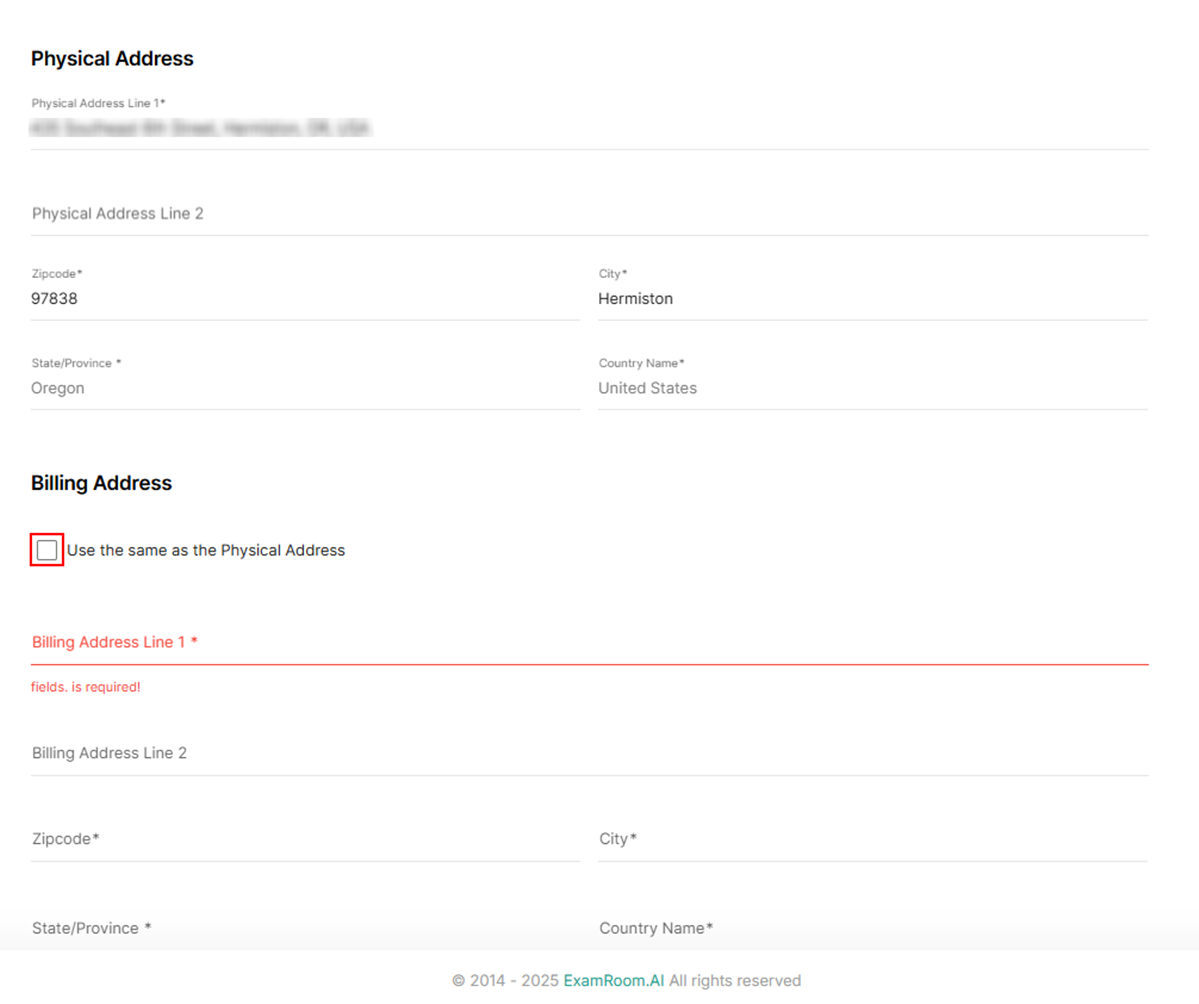
- Enter the Physical Address of the test center in the physical address field.
- Enter the Billing address in the billing address field, If the billing address is same as the test center physical address, Click the Check Box provided under billing address.
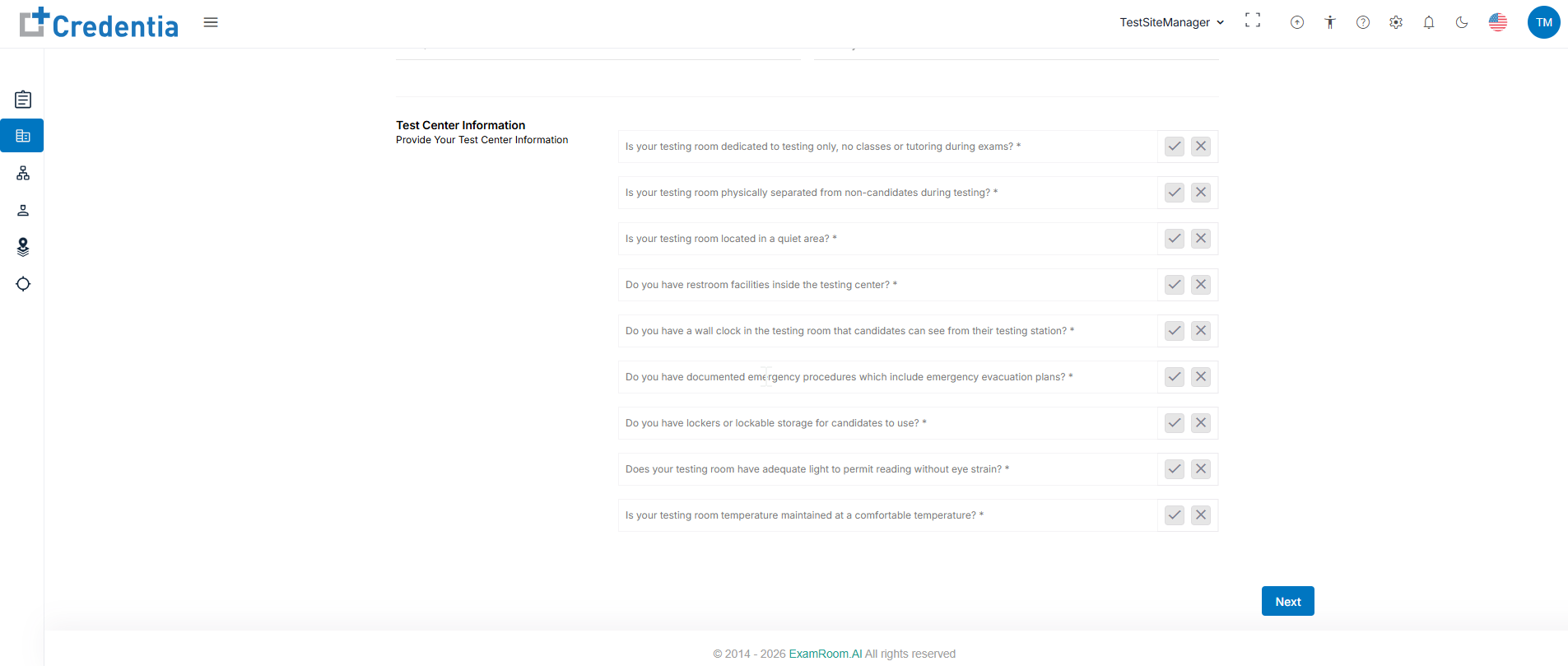
- In the Test Center Information, check the fields that are suitable for the test center and click Next to proceed.
Test Center Information – Additional Information
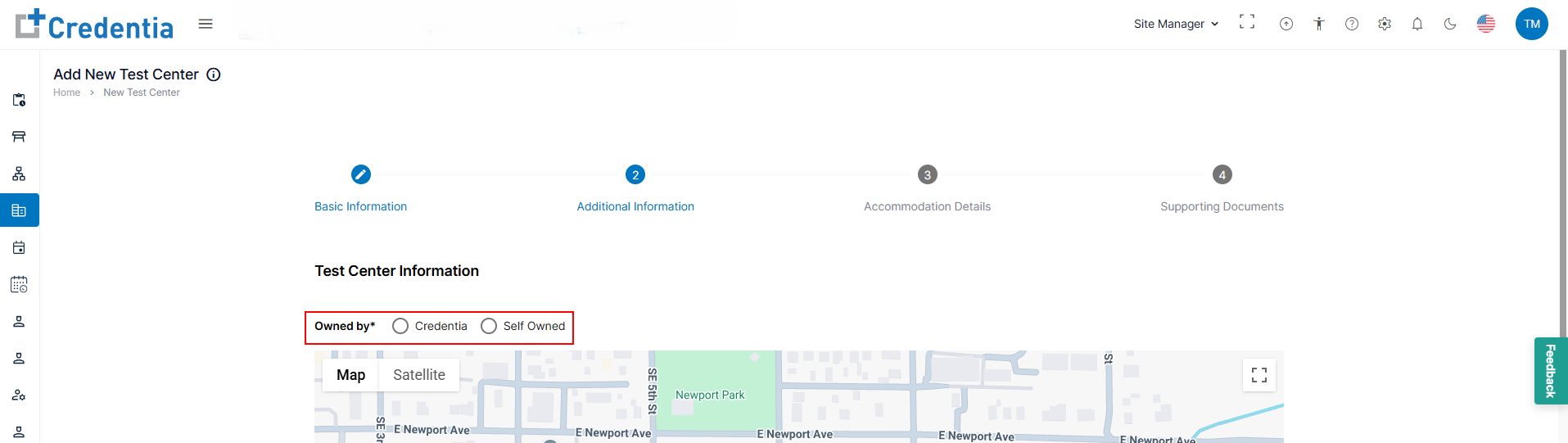
In the Additional Information section, ensure the map shows the correct location to assist evaluators and candidates in finding your test center. Complete all required fields with the necessary details, including the time zone, testing hours, and other relevant information.
- Click the Option button to choose the Owned by option from the available list.
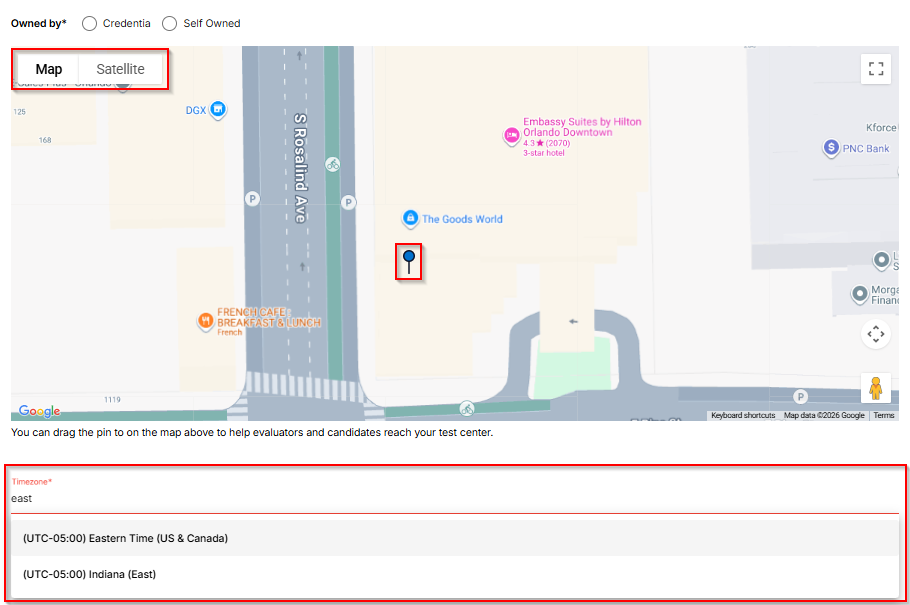
- Select the precise location of the facility using the map. Click and hold the Pin to drag it on the map to correct the pinned location.
Note:- Use a Map or Satellite view at your convenience to locate the test center.
- Use Map Camera Control to move and zoom in and out of the map.
- Use Pegman for the street view in Satellite.
- Select the test center operating Time Zone from the Timezone field dropdown menu. The default setting uses the system time zone, so update it if the test center is in a different time zone.
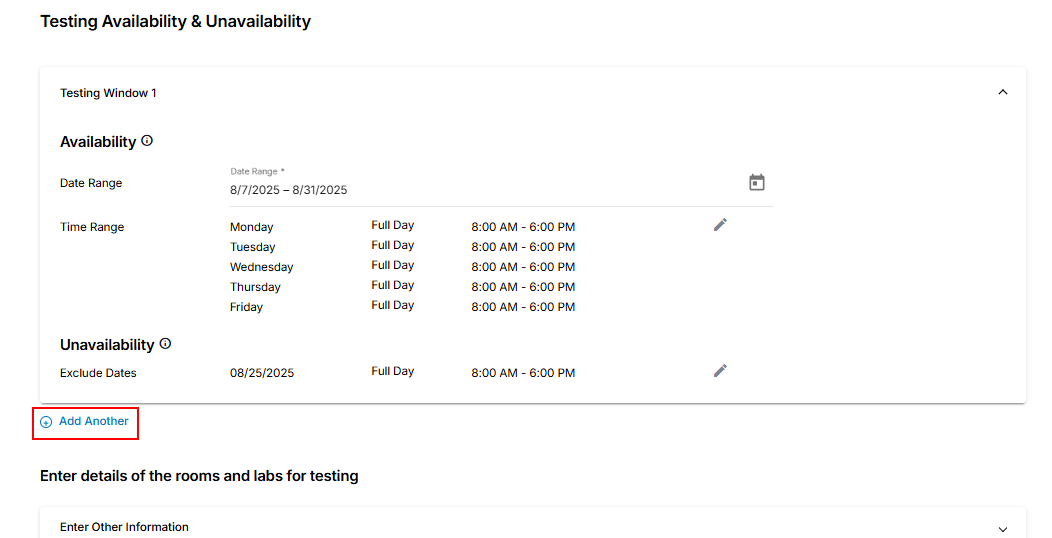
- In the Testing Availability & Unavailability section, you can provide the operations Date and Time Range of the test center, and you can add unavailability details.
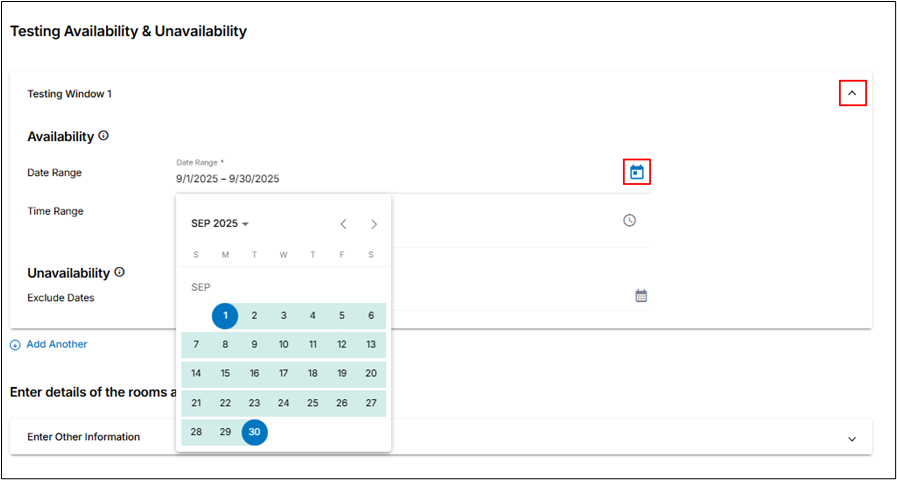
- Click the Testing Window 1 dropdown provided under Testing Availability & Unavailability.
- Click the Date Range Calendar icon and choose the upcoming availability date range from the calendar.
Note:- You can exclude weekly off days when configuring the time range and mark any holiday dates as unavailable under unavailability.
- It is recommended to maintain testing availability for a minimum of 180 days in advance.
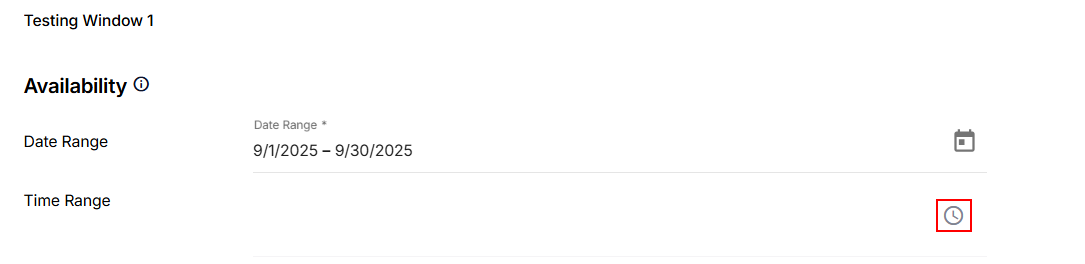
- Click the Time Range Clock icon and select the availability time range.
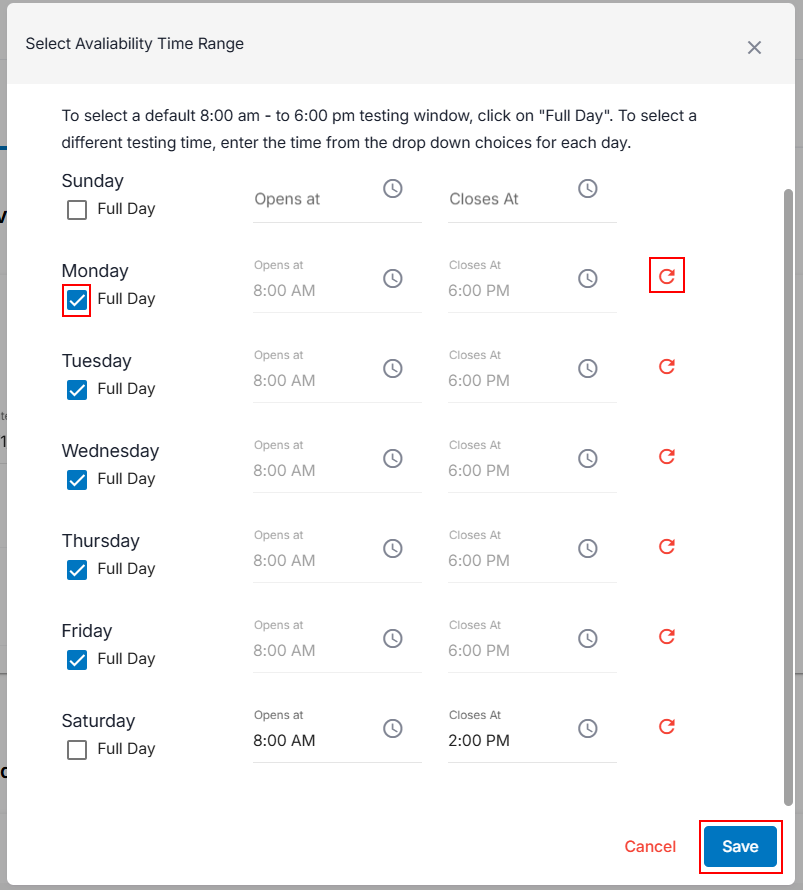
- Click the Check Box to choose the default full-day testing window. To select a different testing time, choose from the drop-down options for each day. To exclude weekly days off, keep this option unchecked and do not specify any testing time ranges.
- Click Save after you have added the time range.
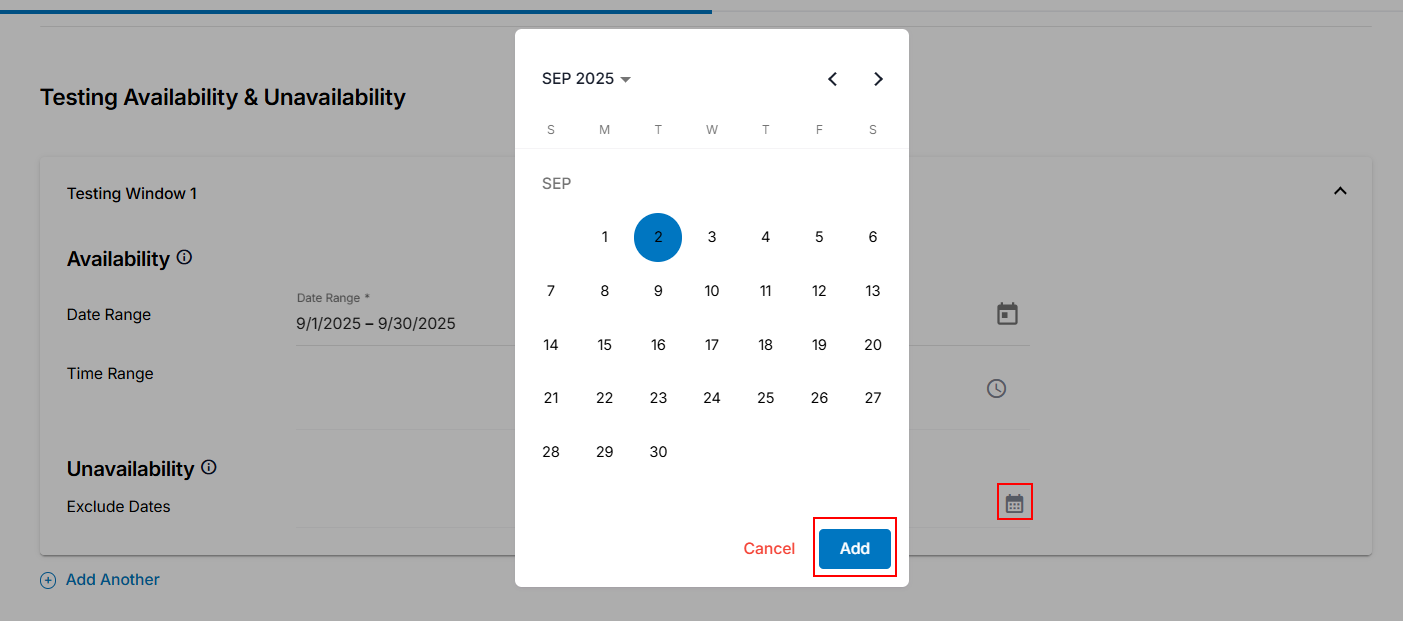
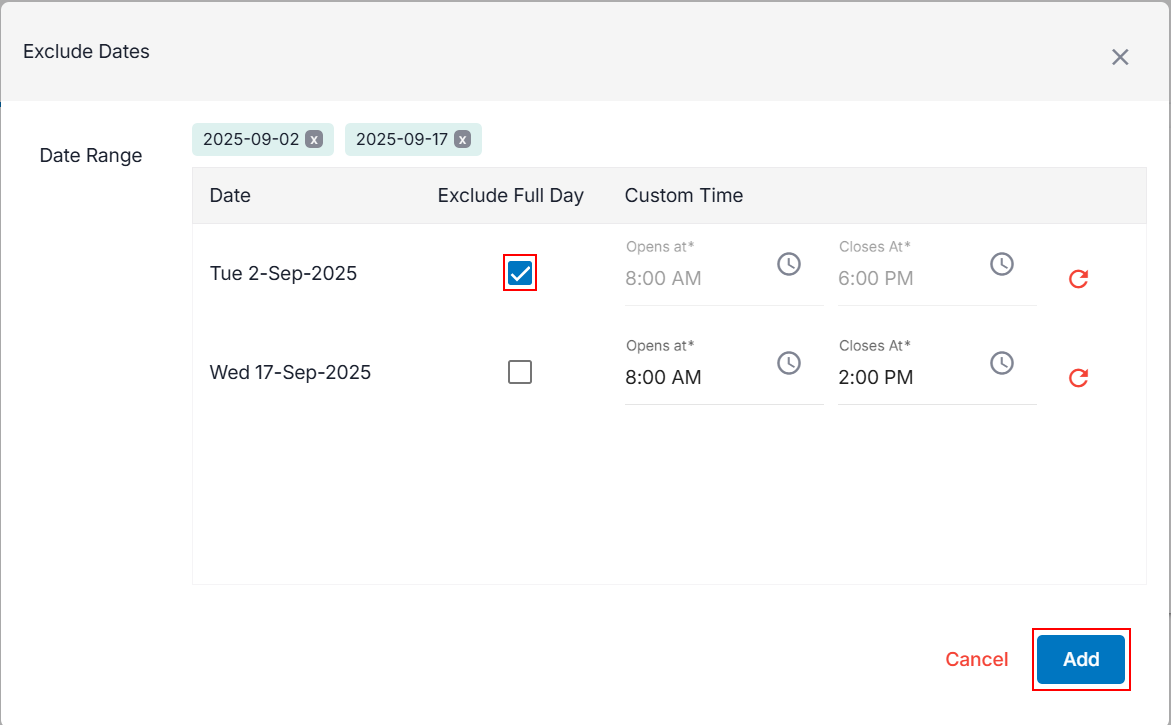
- Exclude Date option provided under Unavailability and choose the dates and times of any pre-planned closure of test center operations. You will be able to exclude dates within the specified availability date range.
- Click the Exclude Date Calendar icon.
- To select a specific date, click on the desired Date in the calendar. Clicking the same date again will clear the selection.
- Click the Add button or click Cancel to discard.
- Click the Check Box to choose the default full-day testing window.
- To select a different testing time, set the time in the Opens at and Closes At fields using the drop-down menu.
- Click the Add button.
- If necessary, click Add Another to include additional testing dates for availability and unavailability.
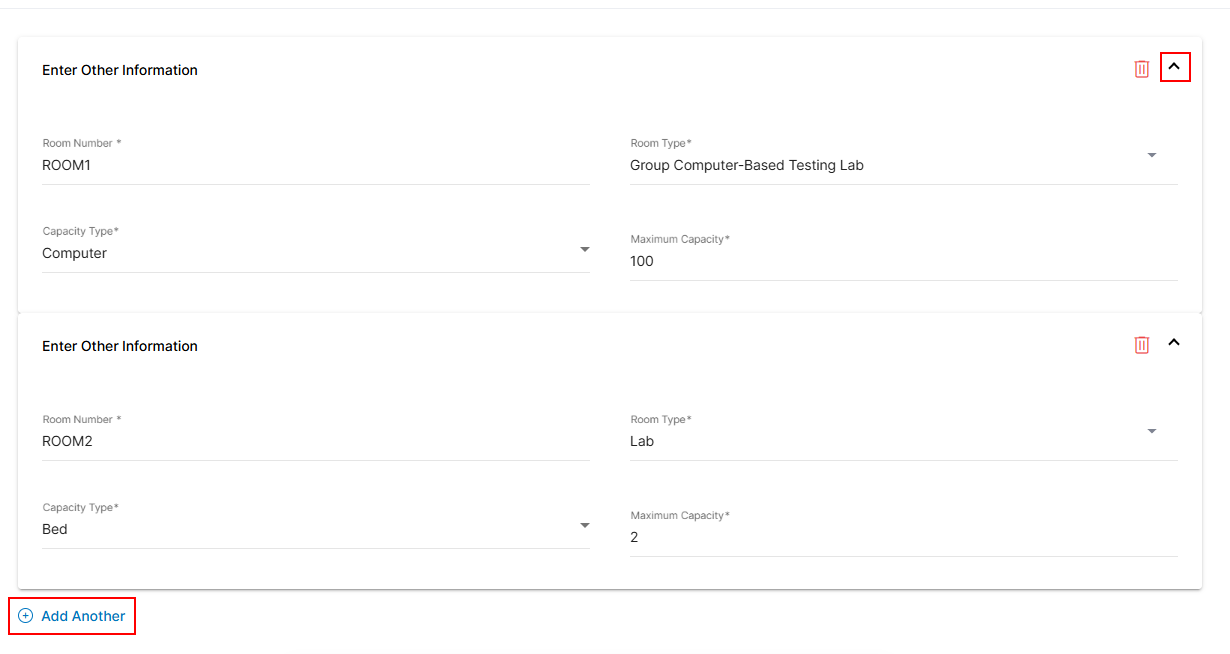
- In the Enter details of the rooms and labs for testing section, specify the number of rooms and choose their room type. Select the available capacity type and input the maximum capacity per exam. Use the 'Add Another' option to include capacity details for different room types.
- Enter the number of rooms for testing in the Room Number field.
- Select a Room Type from the dropdown.
- Select Capacity Type from the dropdown.
- Click Add Another to add more testing room or lab capacity information.
Note: You can add additional capacity details using the Add Another option.
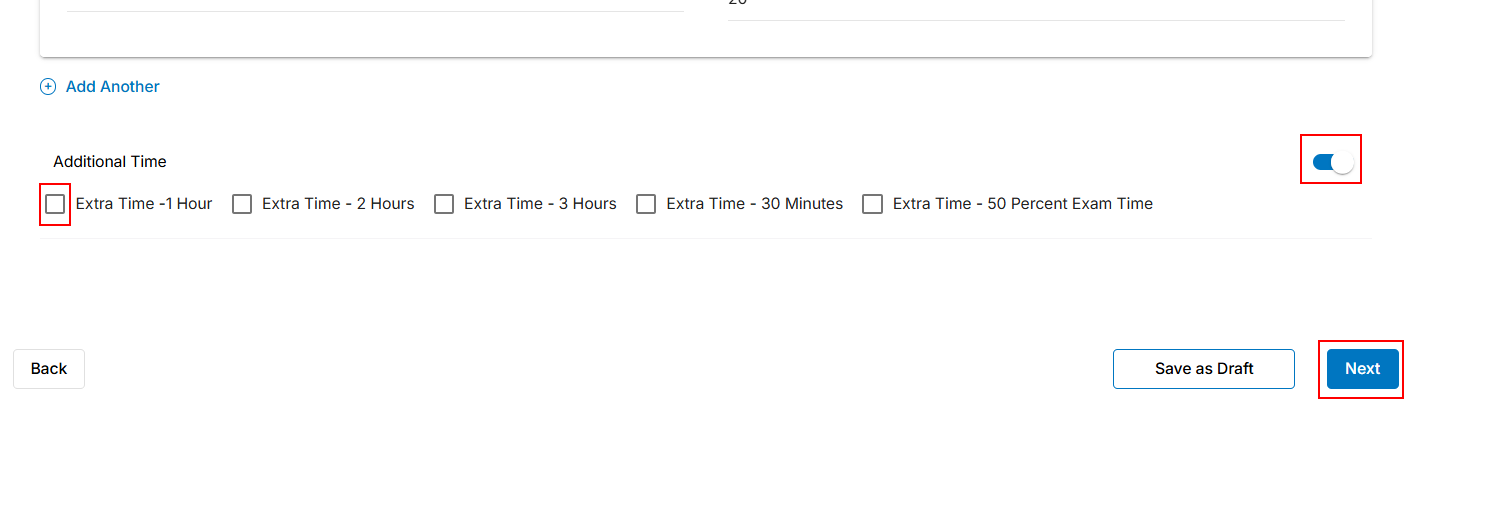
- Enable the Additional Time option if your test center allows.
- Click the Toggle Switch to enable.
- Click the Check Box from the available options to specify the extra time.
- After filling in, click Next to proceed, Save as Draft to save the application details, or back to return to the previous step.
Accommodation
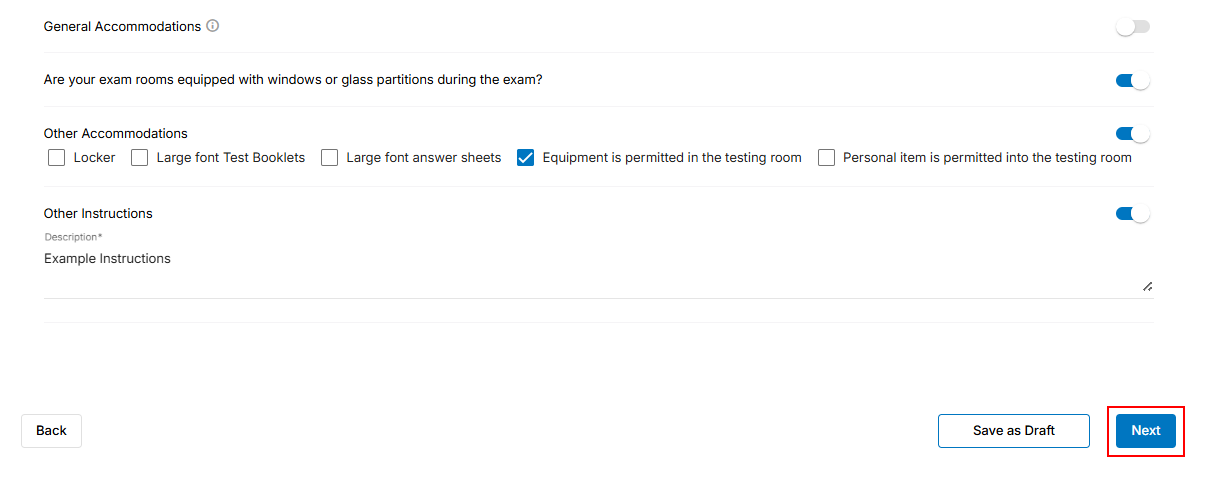
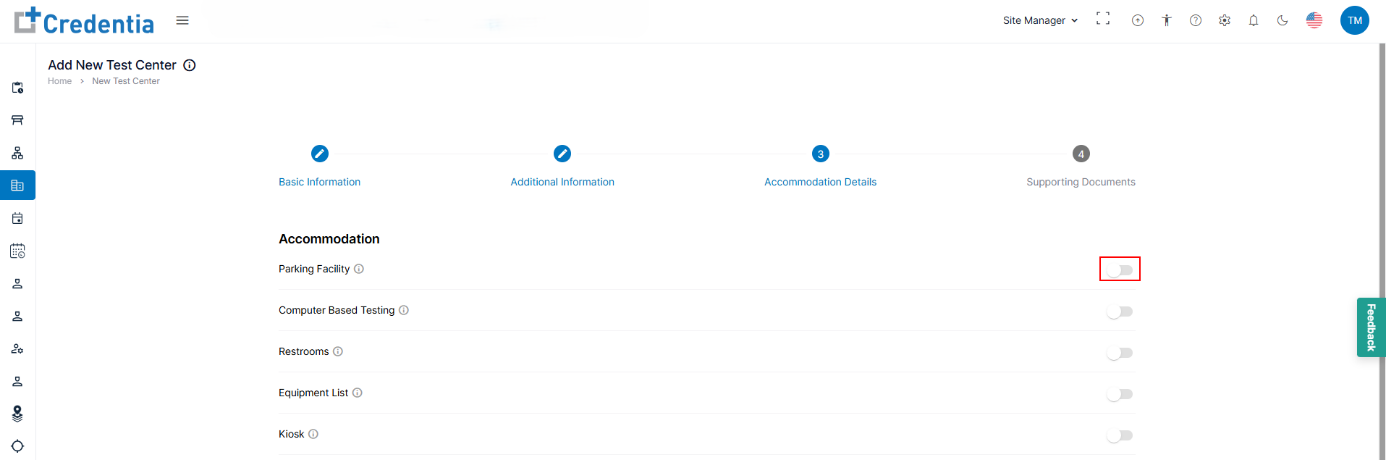
In the Accommodation section, specify available Test Center accommodations by enabling the relevant option and providing its details. If an accommodation is unavailable, keep the option disabled. Use the 'Other instructions' option to add any additional accommodation instructions.
- Click the Toggle Switch to enable each listed accommodation by the test center.
- Click Next to proceed, Save as Draft to save the application details, or Back to return to the previous step.
Supporting Documents
In the Supporting Document, upload all required fields, including Exterior Images, Interior Images, a 360 Degree View of the Test Center, and Proof of Business Document.
- To upload the document, click the Upload bar to choose the relevant file from your system/device. Or drag and drop the file to the Upload Bar.
Note:- Max document size shouldn’t exceed more than 2MB, and only accepted file types are .PNG, .JPG, .PDF, .JPEG, and .WEBP.
- Upload the Ownership Documents if necessary.
- Click Submit to send the application form for review, Save as Draft to save the application details, or Back to return to the previous step.
- After clicking on submit, ensure you recheck the application form displayed in the preview window, scroll through the form to the bottom, and click Submit to apply.
- In case you need to make any changes in the application form, click Cancel to update the changes in the application.
- After submission, you will receive a toaster message stating that the Application has been successfully submitted and sent for review.
- Click the View icon under action to view its status.
- Operations teams will review the application form and act (approve, reject, and request change) accordingly.
- Hover on the Application form to view the status of the application. You also receive an email notification once the application has been reviewed.
- After approval, refer to the Auditing section to complete the auditing of the added test center.