Forgot Password
If you have already registered but have forgotten your password, you can reset it on the login page by clicking Forgot Password.
Note: If you have access to your account and want to change your current password, see "Change Password" to reset it.
To reset your password, follow these steps:
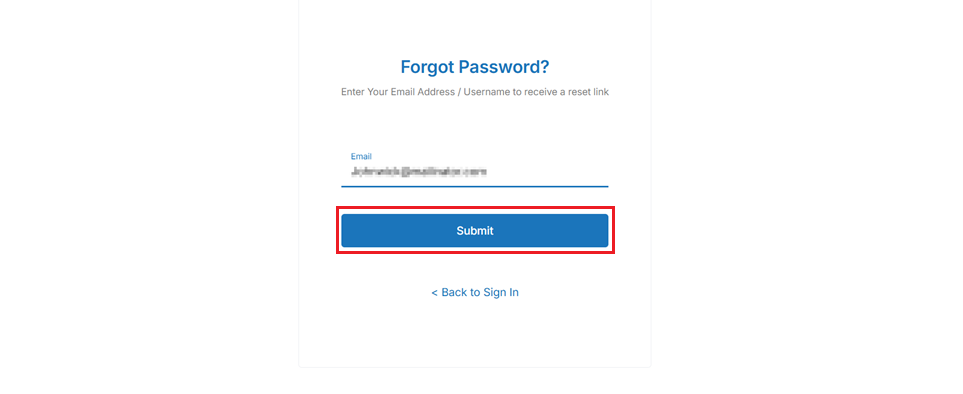
- Click Forgot Password provided on the login page.
- In the Email field, enter your registered email address and click Submit. Click Back to Sign In to go back to the login page.
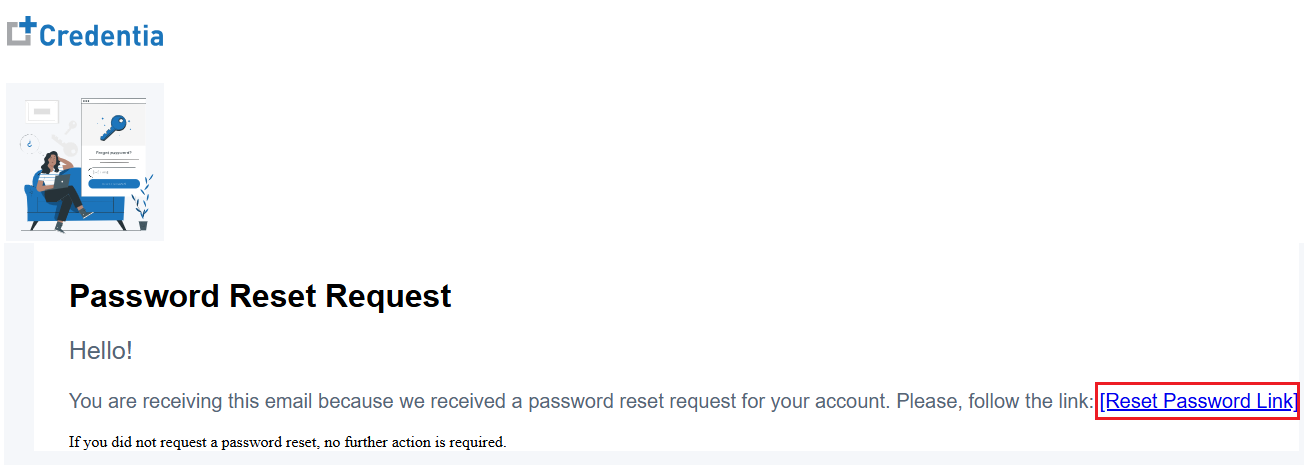
- After submitting the password change request. An email with a Reset Password Link is sent to the registered email address.
- Click the Reset Password Link to redirect to the Set Password page.
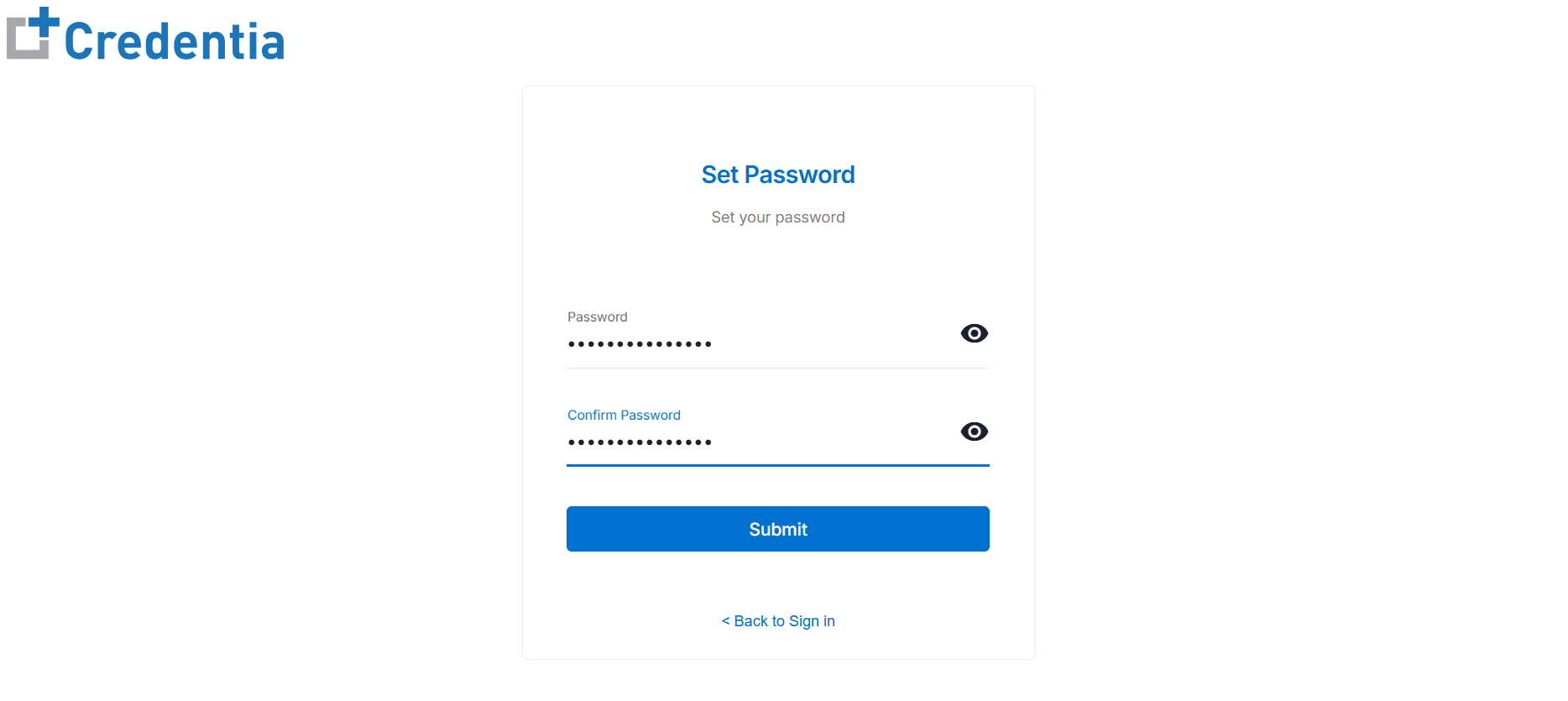
- In the Set Password page, enter your new password in the Password field and retype the same in the Confirm Password field for verification.
Note: Please ensure the password meets the organization's security standards, which require a minimum of fourteen 14 characters that include at least one uppercase, one lowercase, one digit, and one special character.
- Click the view icon to view your new password. Click Submit to update the password. Click Back to Sign in to exit the reset password page.
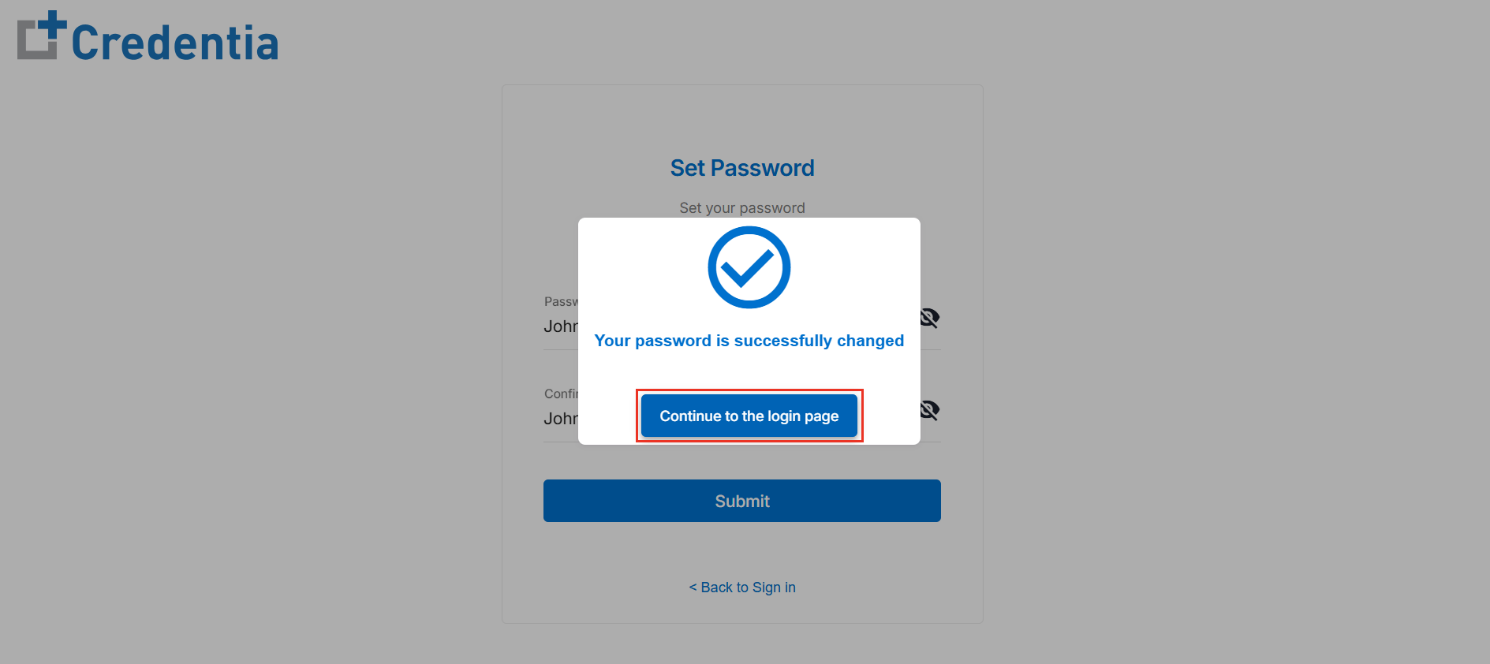
- After submitting, a dialogue box appears, indicating that your password has been successfully changed. Click Continue to the login page to log in.