
View and Manage Event Requests
The Events section allows you to manage event planning in one place for your test centers. You can easily add new event requests with the necessary details and view the status of your submitted requests. If plans change, you can modify or cancel requests with just a few clicks. After approval, you can oversee your scheduled events to ensure smooth operations.
View Event Requests
To view the requested or existing events, follow the instructions below:
- Log in to the Credentia TSM console.
- Navigate to Events from the side menu.
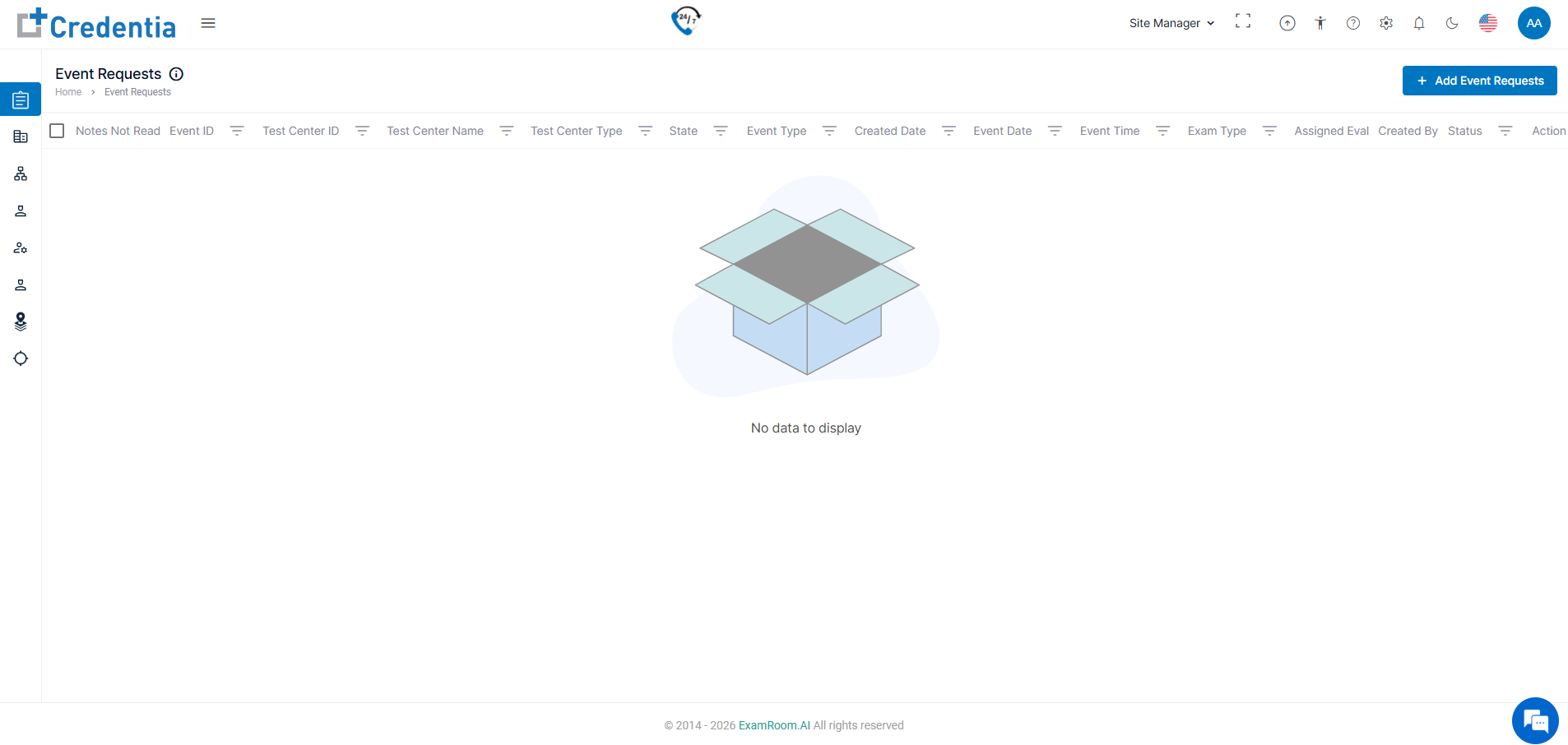
View Event Request List details
The page displays a table of all submitted event requests with key details, including:
- Event ID & Test Center Details – View the event ID, test center ID, name, and type.
- State & Event Type – Check the state and event type for each request.
- Event Dates & Time – Review the scheduled date, event date, and start time.
- Exam Type & Assigned Evaluator – See the type of exam and assigned evaluator.
- Status – Track whether the request is in pending, change request, approved, published, or confirmed status.
Filter to Sort Event Requests
- Use the Column filters to sort and find specific requests by ID or test center.
- Apply filters (e.g., date, state, event type, status) to narrow down results.
- Click the Filter options to sort/search.
- Add/Select the desired section to sort or find the event from the list.
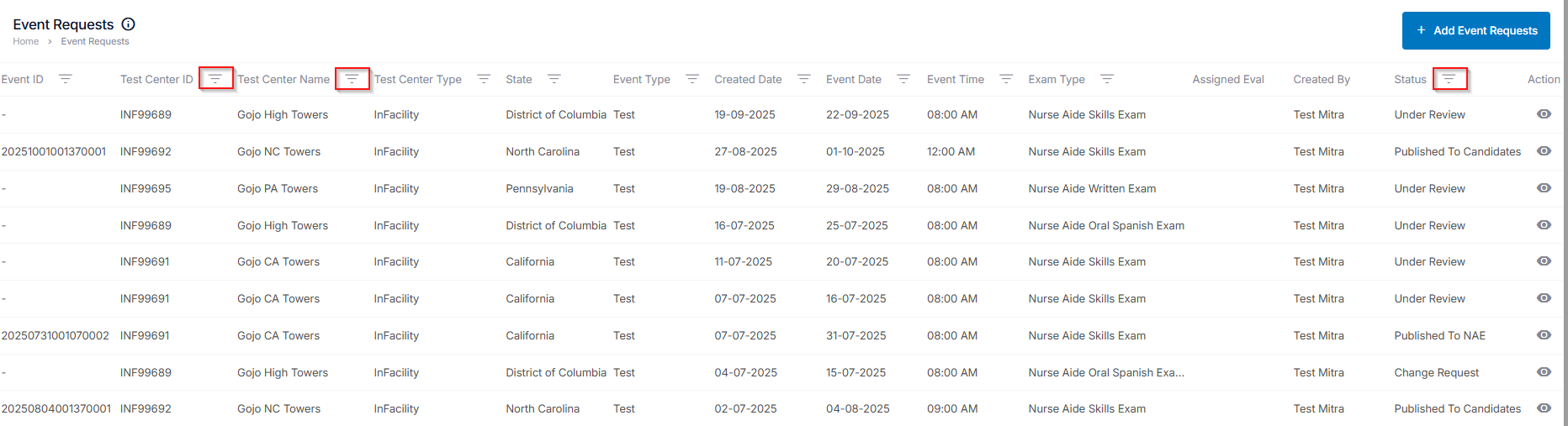
Monitor Approved Events
After approval, track your scheduled events and ensure they are ready for execution.
Note: Utilize the filter options to find or sort search events. Refer: Filter to Sort Event Requests.