Add Event Requests
You can request to add an event by logging into the Credentia TSM console. The options for Add Event Requests may vary depending on the test center's state. Check the state-specific instructions below to submit requests for adding new events to your test centers.
Note:
- If you operate test centers in several states, review the instructions below, since some fields in the request form might differ accordingly.
- For Virginia, North Carolina, and South Carolina, State Test Centers can submit a single request for Oral, Written, and skills Exams simultaneously.
- California, Colorado, and other states' Test centers can submit a single request for both Oral and Written Exams simultaneously, while Skills exam requests require a separate, new event submission.
- To add an event request for the state,
Virginia, North Carolina, and South Carolina State Test Centers
If you want to add an event request for the VA, NC, and SC state test centers, follow the steps below:
- Log in to your test site management account.
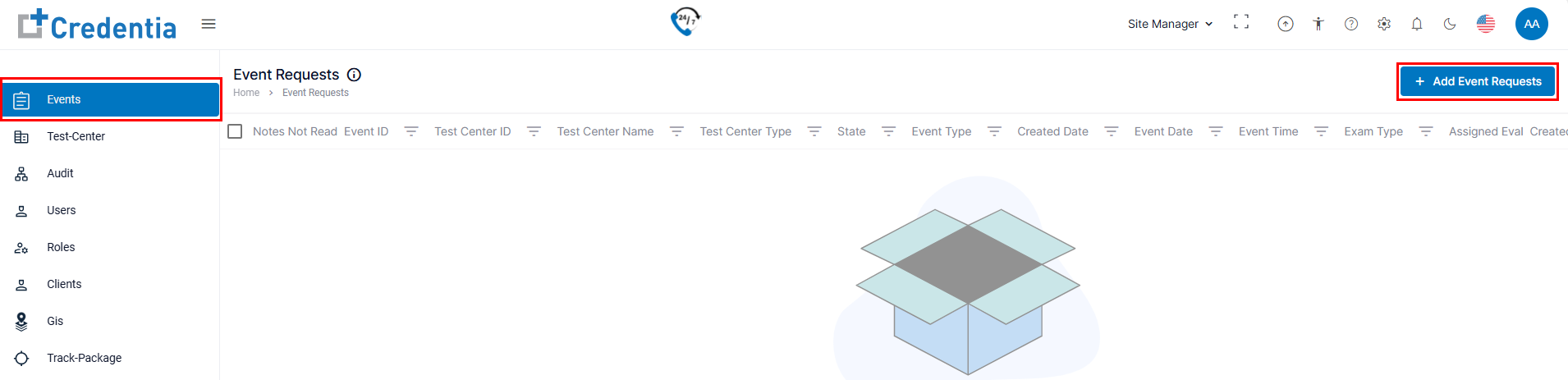
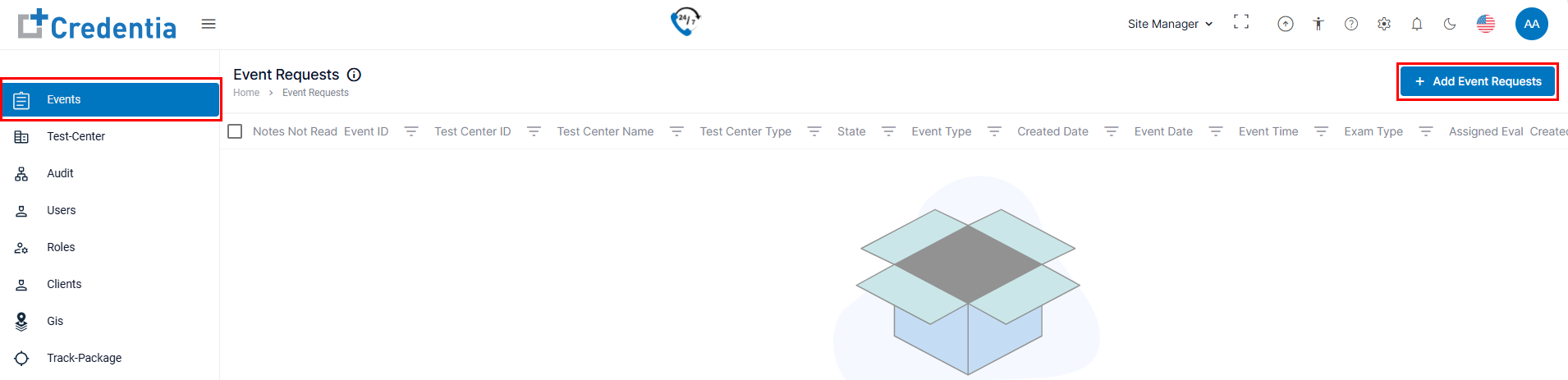
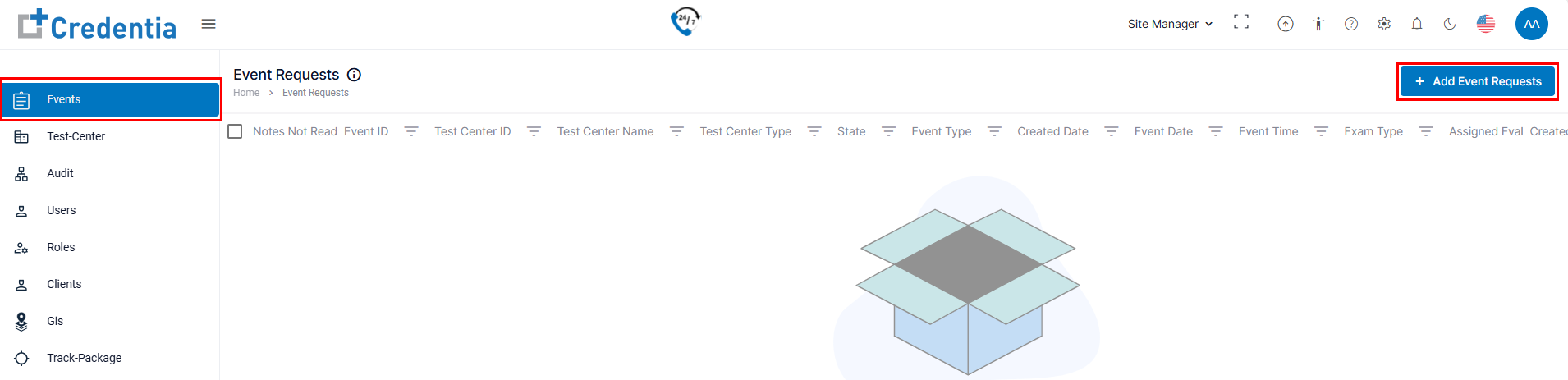
- Navigate to the Events section from the left side menu.
- Click the + Add Event Request button provided at the top right side of the event page.
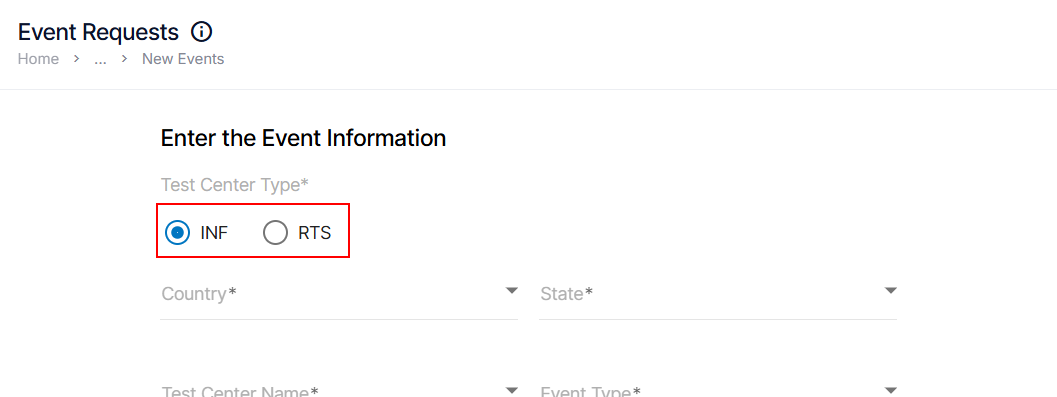
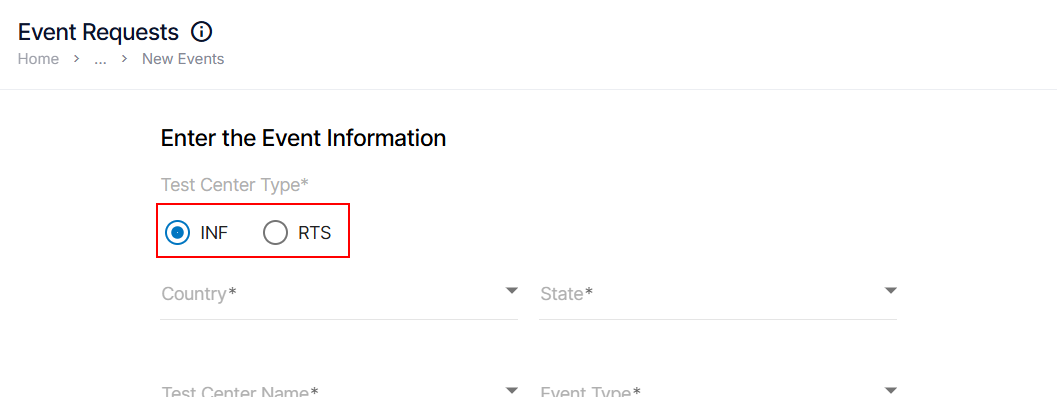
- Select Test Center Type by choosing either INF (default selected) or RTS (Click the appropriate option button based on your test center type.)
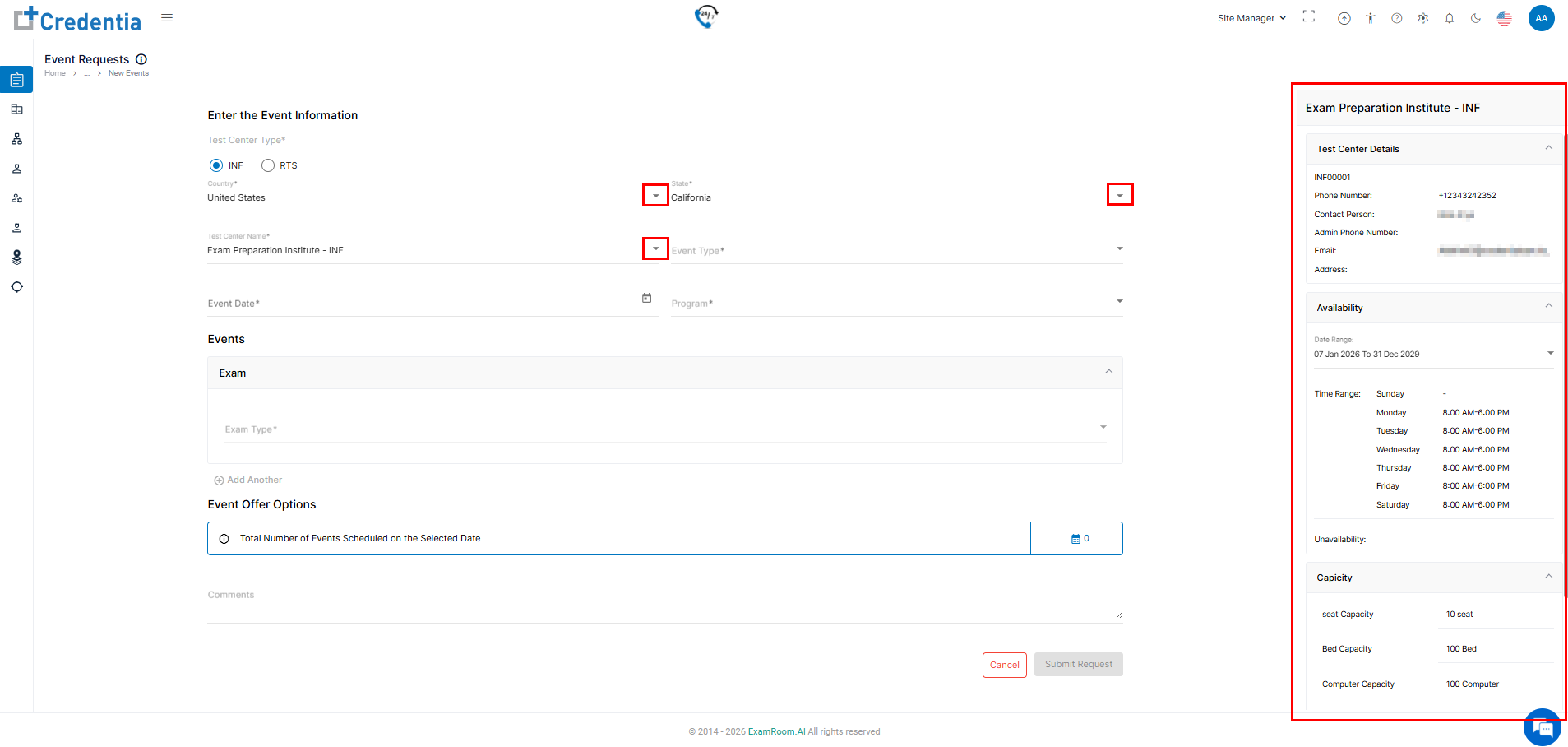
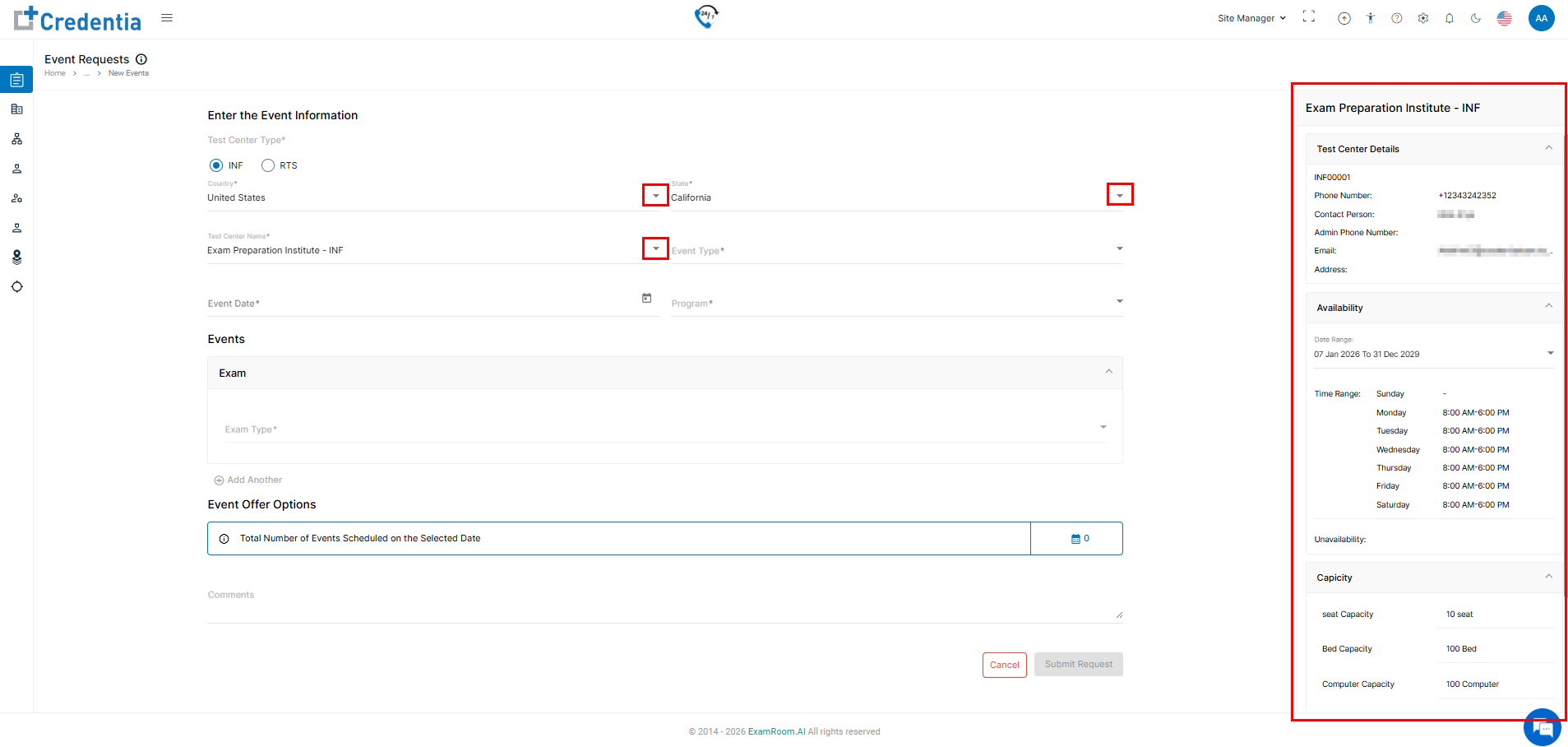
- Select the test center where you want to add the event request. Note that the dropdown list appears depending on the country and state you select.
- Country: Select the country from the dropdown list.
- State: Select the state from the dropdown menu.
- Test Center Name: Choose the test center name from the list.
- Info: Refer to the right-side information section for complete details of the selected test center.
- Info: Refer to the right-side information section for complete details of the selected test center.
- Fill in Event information
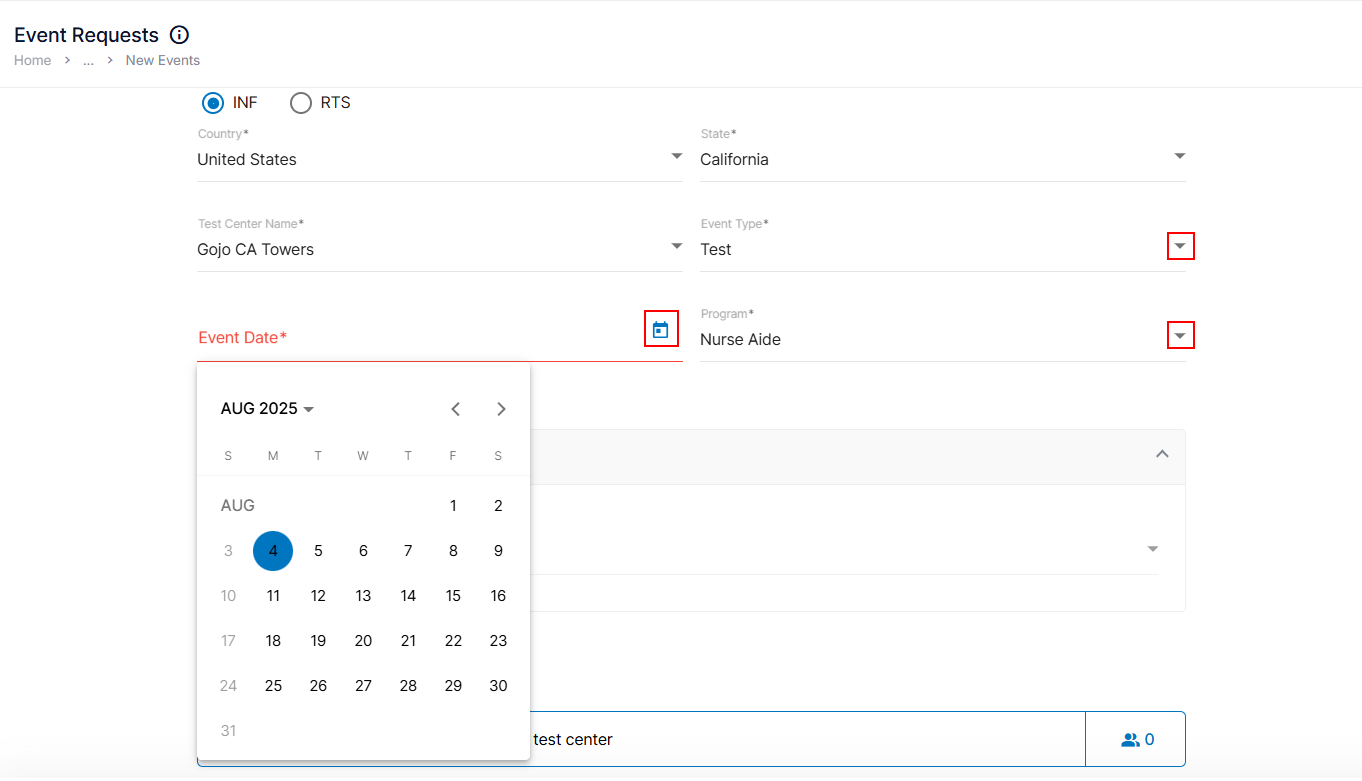
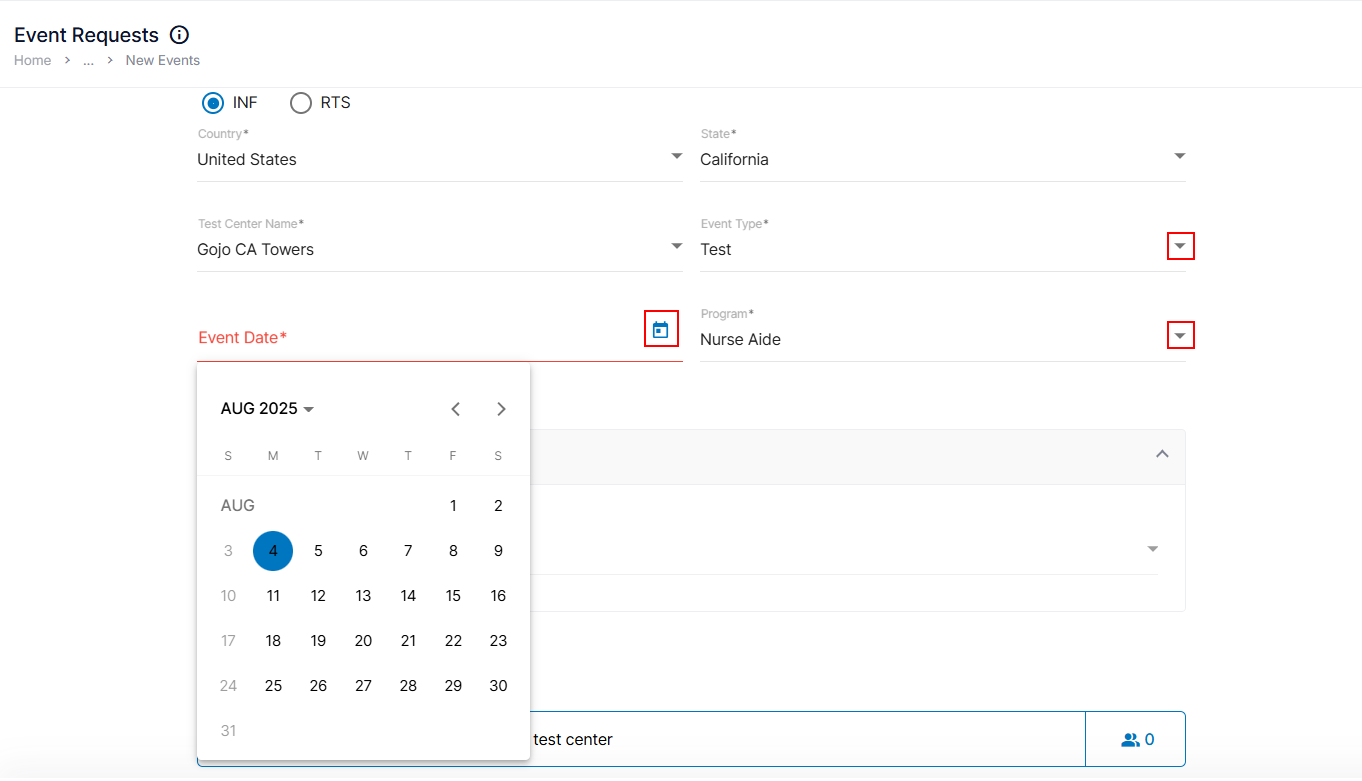
- Event Type: Pick the type of event from the dropdown (e.g., Test Event).
- Event Date: Click the calendar icon and select the desired event date.
- Program: Select the program associated with this event from the dropdown.
- In the Events section, there is an exam information box where you can input exam details. You can add multiple exams for an event by adding additional exam information boxes. The ability to add exams depends on the selected state, test center availability, and specific requirements. Based on the Exam Type selection in the exam info box, the corresponding options will appear to configure the event’s schedule options.
Note:- To add multiple exam types, click the "Add Another" option provided at the bottom of the exam configuration box.
- The exam configuration options will change based on the Exam Type selection.
- In the exam information box, fill in the following fields to provide exam details:
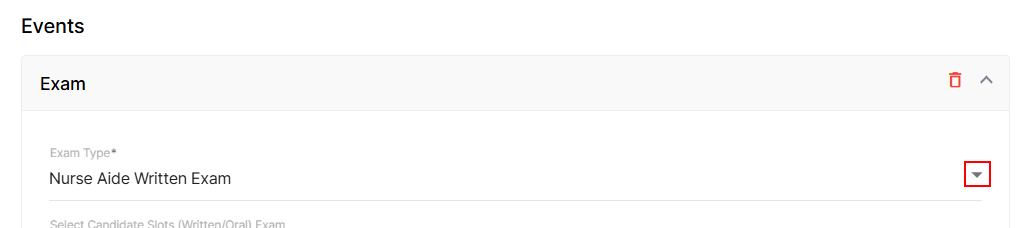
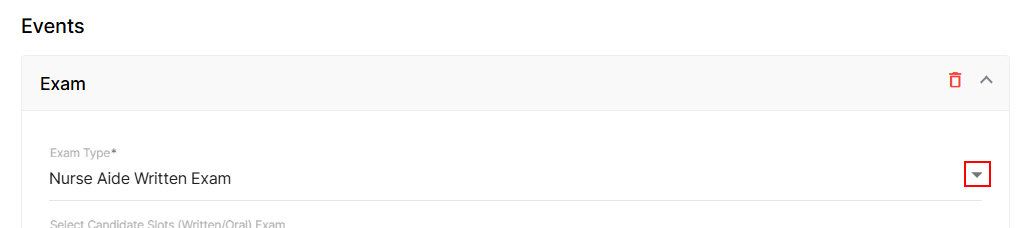
- Exam Type: Select the type of exam from the dropdown.
- Assign person (Option appears based on the current state and exam type).
- Click the + Plus icon.
- Select Assignee’s: Proctor or NAE by clicking the option icon.
- Click the Add button to save the selection.
Note:- If you have selected the Skills exam, choose an NAE from the list and proceed.
- The Assign Person option may not be applicable for certain Exam Types.
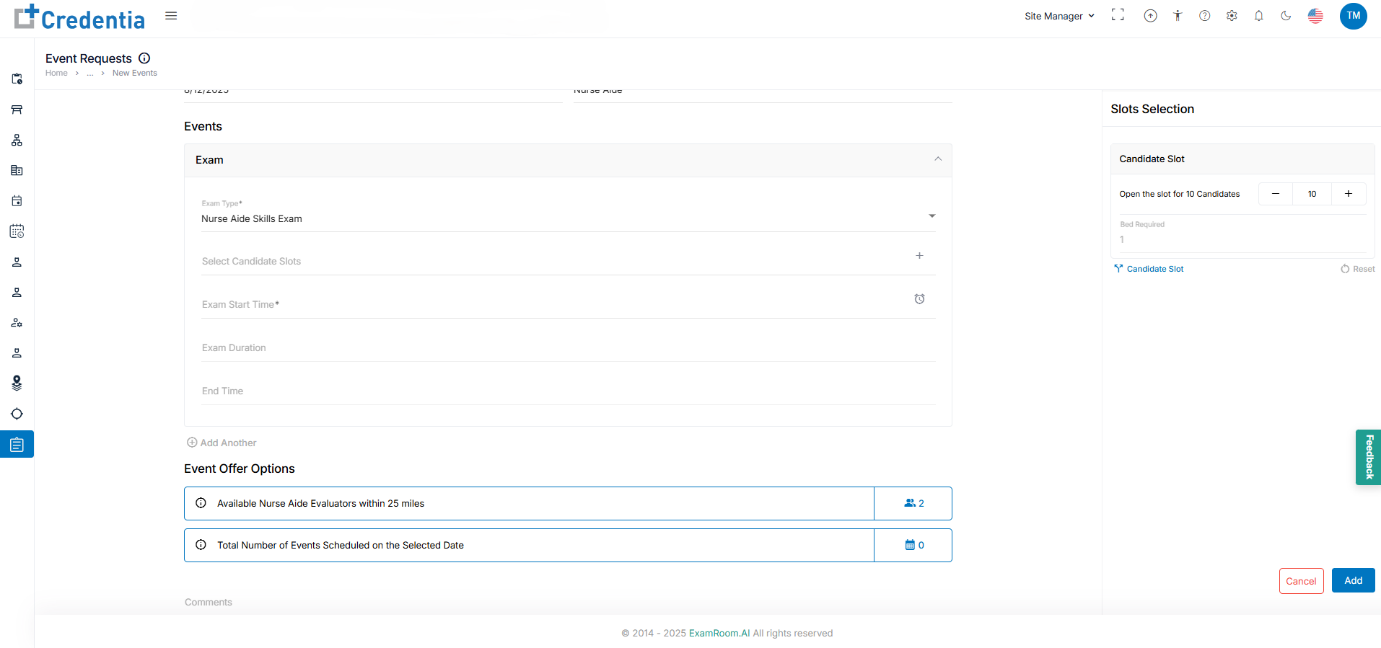
- Open Candidate Slot: Select the candidate slots for the selected exam type.
- Click the + Plus icon.
- Set the number of slots you wish to open for candidates by clicking on the plus or minus option.
- Click the Add button to add the number of slots.
- Exam Type: Select the type of exam from the dropdown.
- Add Start Time:
- Click on the Exam Start Time input field.
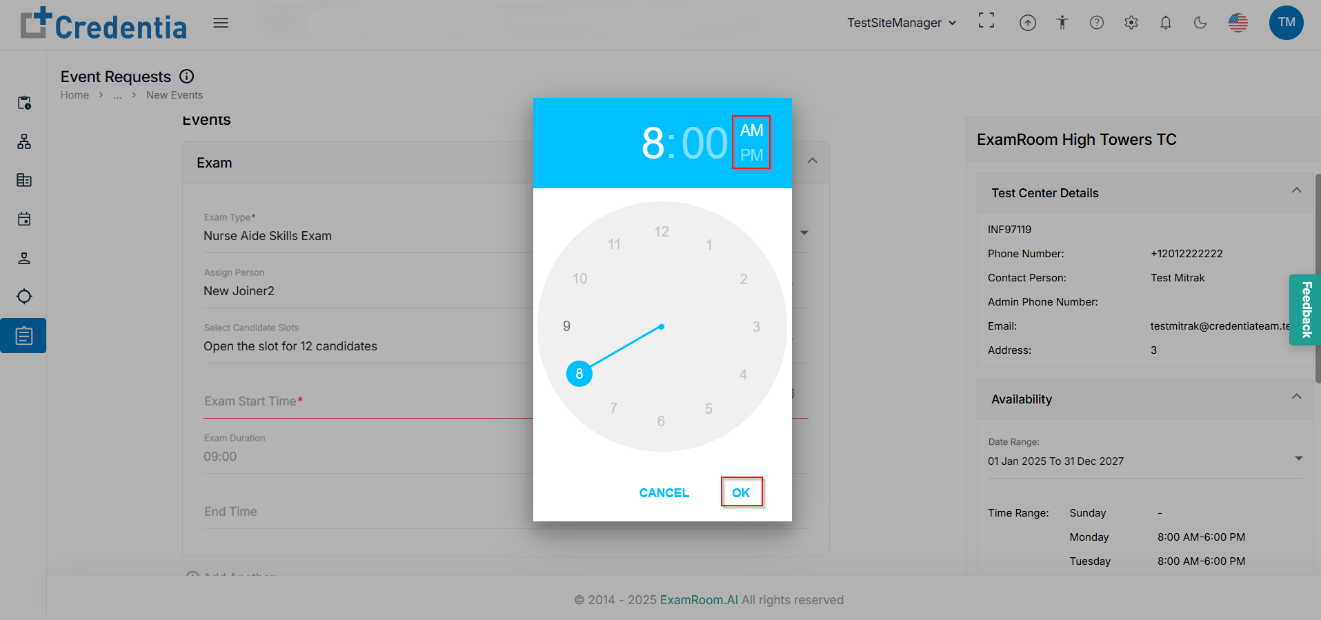
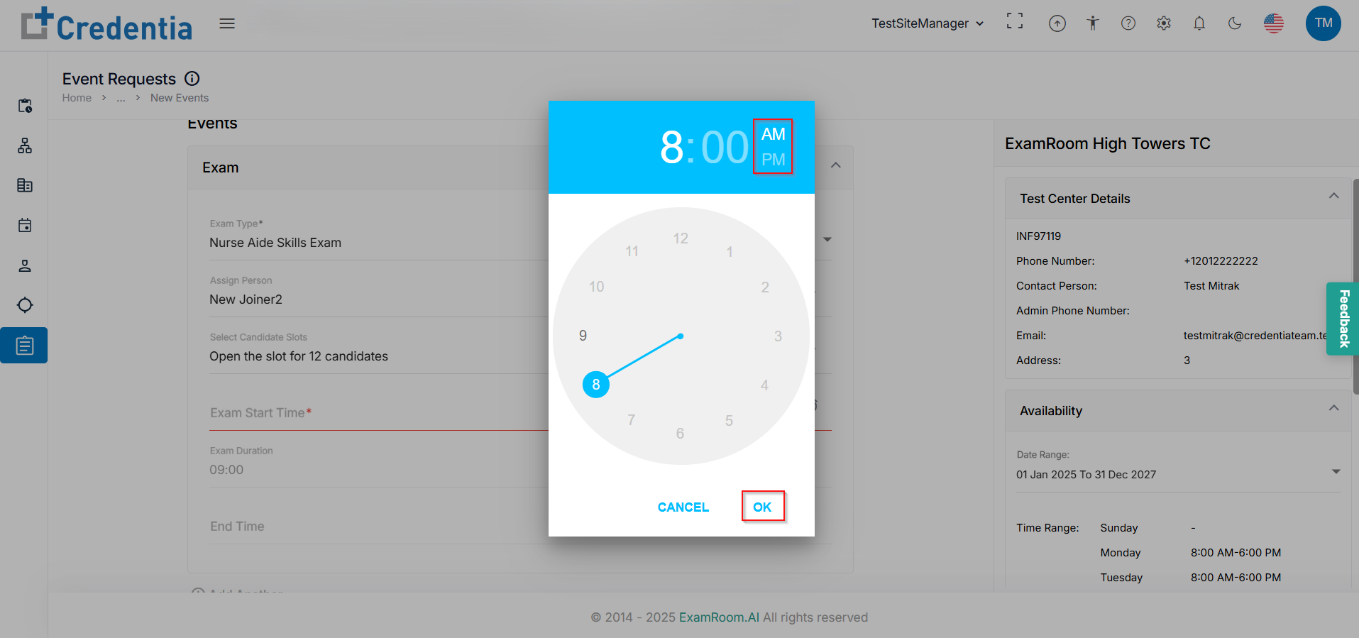
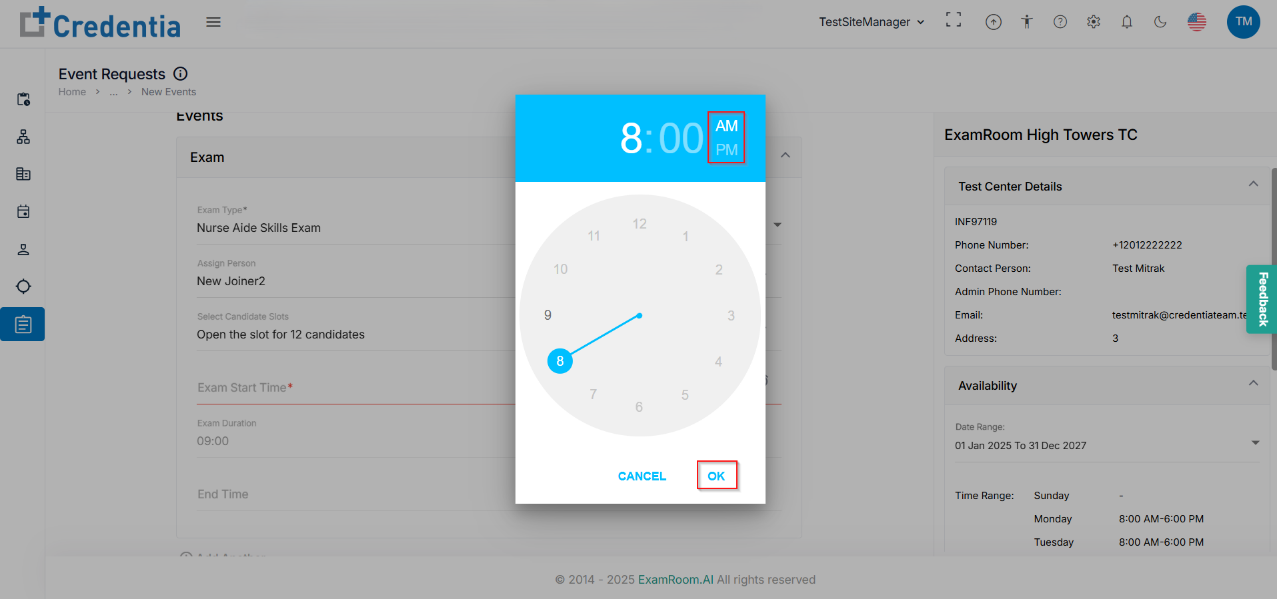
- A pop-up will appear to select the time. First, choose whether it's AM or PM.
- Next, select the start time from the available options on the clock. The selection will only highlight available options (Time). When choosing a post-noon time, ensure you choose PM and look for an available post-noon start time.
- After selections, click OK.
- End time will be auto-filled based on the start time section.
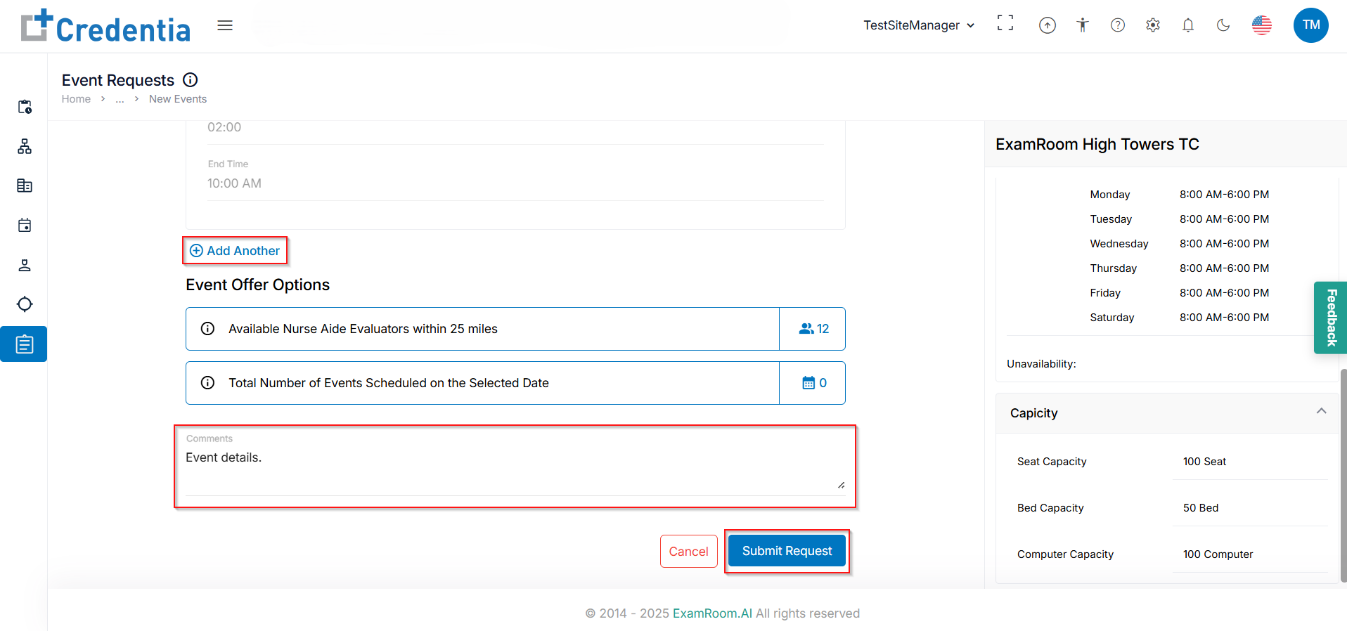
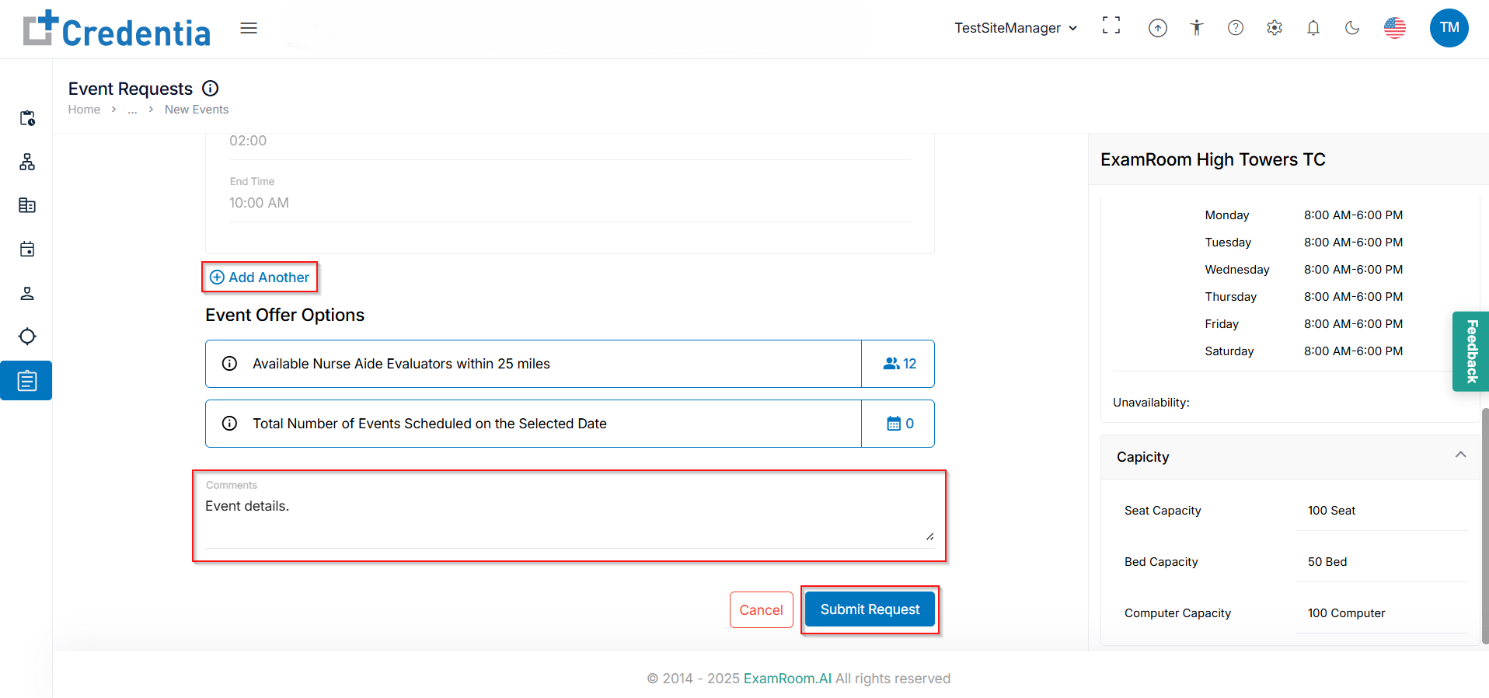
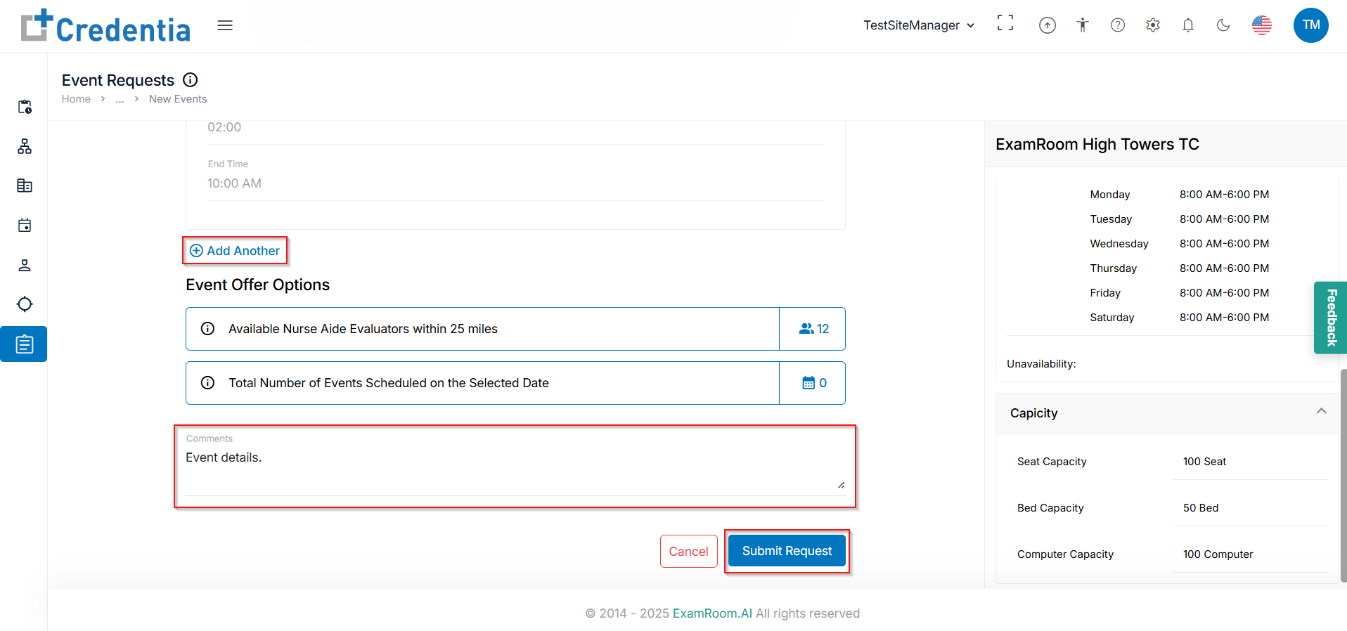
- Add Another: (Optional) Click Add Another if you want to add more exams to this event request.
- View Event Offer Options (Optional)
- You can review these options for additional details:
- Available Nurse Aide Evaluators within defined miles (Displays the number of evaluators available nearby.)
- Total Number of Events Scheduled on the Selected Date (Shows how many events are already planned for the selected date.)
- Enter any additional comments in the Comments box provided at the bottom.
- Submit or Cancel the Request
- Click Submit Request to finalize and send your event request.
- Or click Cancel to discard the request.
California State Test Centers
If you want to add an event request for the California state test centers, follow the steps below:
- Log in to your test site management account.
- Navigate to the Events section from the left side menu.
- Click the + Add Event Request button provided at the top right side of the event page.
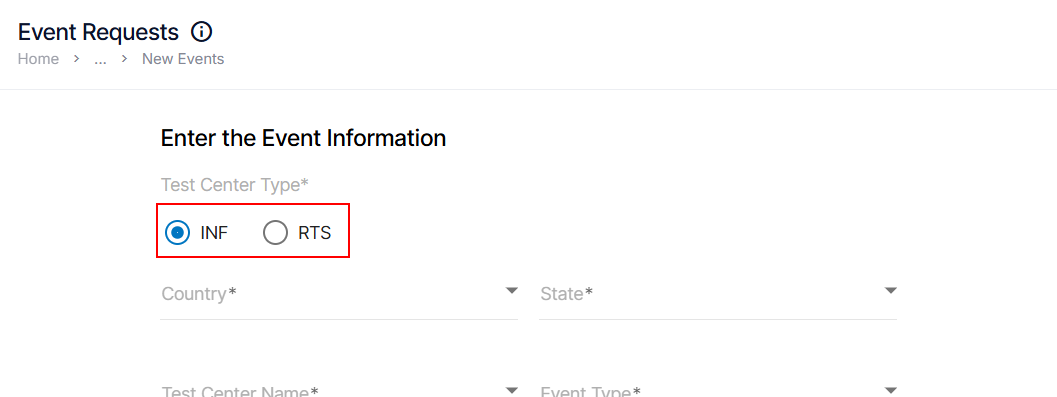
- Select Test Center Type by choosing either INF (default selected) or RTS (Click the appropriate option button based on your test center type.)
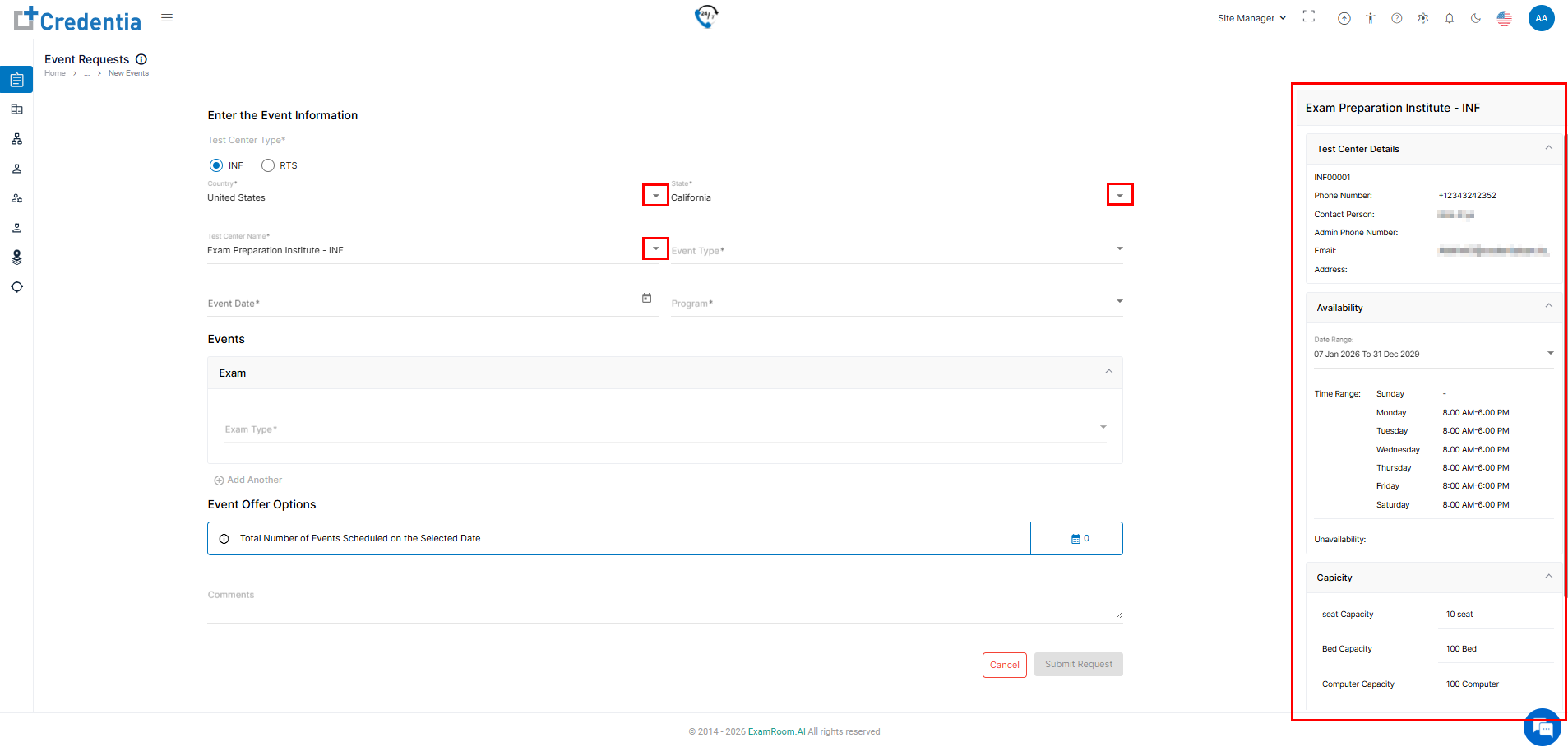
- Select the test center where you want to add the event request. Note that the dropdown list appears depending on the country and state you select.
- Country: Select the country from the dropdown list.
- State: Select the state from the dropdown menu.
- Test Center Name: Choose the test center name from the list.
- Info: Refer to the right-side information section for complete details of the selected test center.
- Info: Refer to the right-side information section for complete details of the selected test center.
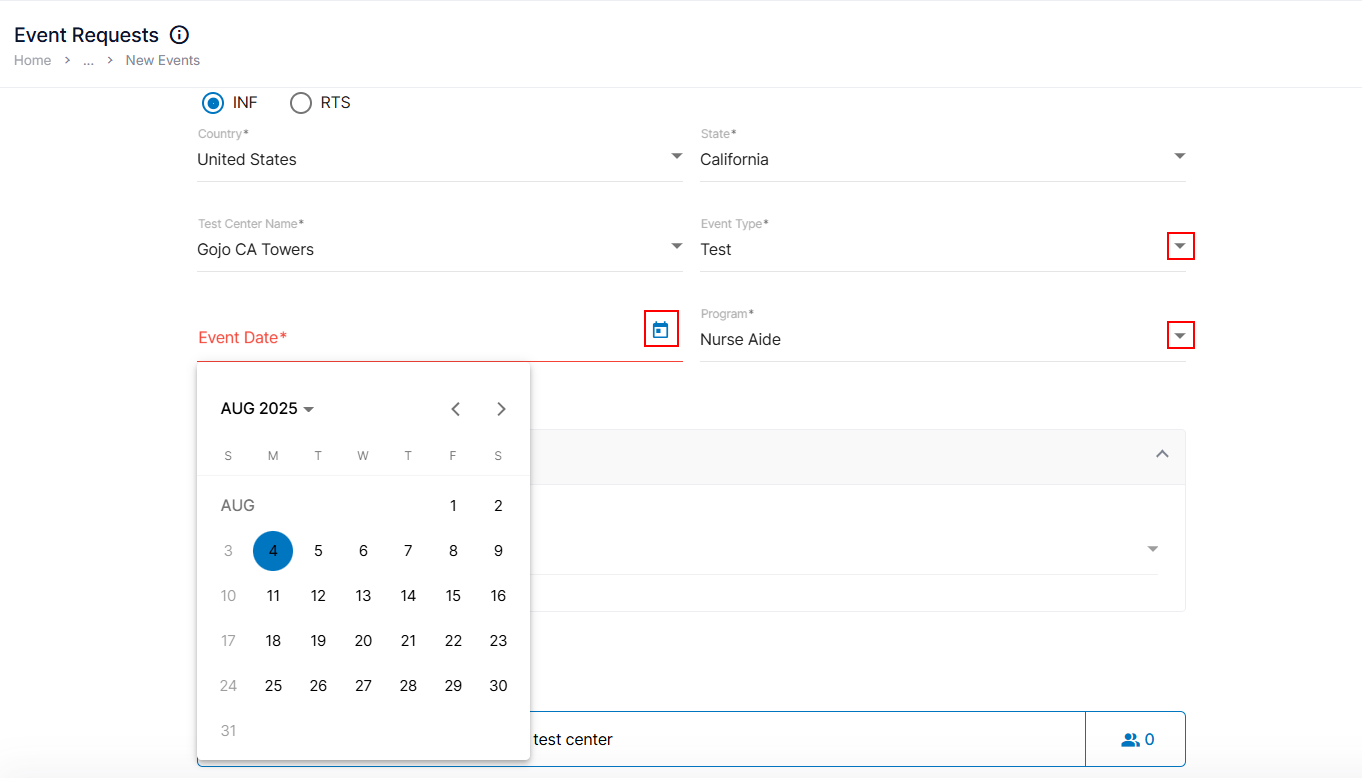
- Fill in Event information
- Event Type: Pick the type of event from the dropdown (e.g., Test Event).
- Event Date: Click the calendar icon and select the desired event date.
- Program: Select the program associated with this event from the dropdown.
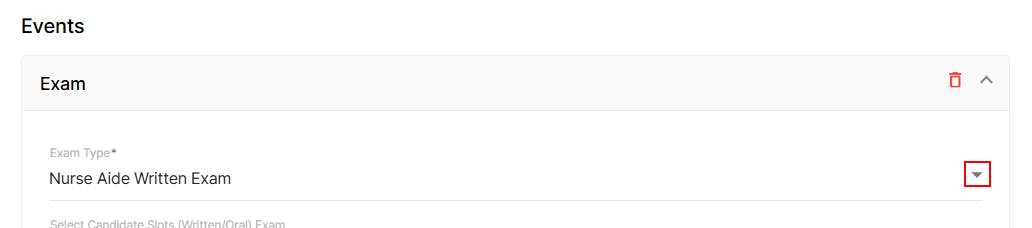
- Under the Events section, add the Exam Type from the dropdown and corresponding options will appear to configure the event’s schedule options. Note to add multiple exam types click Add Another option provided at the bottom end of the exam configuration box.
Note: The exam configuration options will change based on the Exam Type selection.- Exam Type: Select the type of exam from the dropdown.
- Assign person (Option appears based on the current state and exam type).
- Click the + Plus icon.
- Select Assignee’s: Proctor or NAE by clicking the option icon.
- Click the Add button to save the selection.
Note:- If you have selected the Skills exam, choose an NAE from the list and proceed.
- The Assign Person option may not be applicable for certain Exam Types.
- Open Candidate Slot: Select the candidate slots for the selected exam type.
- Click the + Plus icon.
- Set the number of slots you wish to open for candidates by clicking on the plus or minus option.
- Click the Add button to add the number of slots.
- Exam Type: Select the type of exam from the dropdown.
- Add Start Time:
- Click on the Exam Start Time input field.
- A pop-up will appear to select the time. First, choose whether it's AM or PM.
- Next, select the start time from the available options on the clock. The selection will only highlight available options (Time). When choosing a post-noon time, ensure you choose PM and look for an available post-noon start time.
- After selections, click OK.
- End time will be auto-filled based on the start time section
- Add Another: (Optional) Click Add Another if you want to add more exams to this event request.
- View Event Offer Options. You can review these options for additional details: (Optional)
- Available Nurse Aide Evaluators within defined miles (Displays the number of evaluators available nearby.)
- Total Number of Events Scheduled on the Selected Date (Shows how many events are already planned for the selected date.)
- Enter any additional comments in the Comments box provided at the bottom.
- Submit or Cancel the Request
- Click Submit Request to finalize and send your event request.
Or click Cancel to discard the request.
- Click Submit Request to finalize and send your event request.
Colorado and Other State Test Centers
If you want to add an event request for the Colorado state test centers, follow the steps below:
- Log in to your test site management account.
- Navigate to the Events section from the left side menu.
- Click the + Add Event Request button provided at the top right side of the event page.
- Select Test Center Type by choosing either INF (default selected) or RTS (Click the appropriate option button based on your test center type.)
- Select the test center where you want to add the event request. Note that the dropdown list appears depending on the country and state you select.
- Country: Select the country from the dropdown list.
- State: Select the state from the dropdown menu.
- Test Center Name: Choose the test center name from the list.
- Info: Refer to the right-side information section for complete details of the selected test center.
- Info: Refer to the right-side information section for complete details of the selected test center.
- Fill in Event information
- Event Type: Pick the type of event from the dropdown (e.g., Test Event).
- Event Date: Click the calendar icon and select the desired event date.
- Program: Select the program associated with this event from the dropdown.
- Under the Events section, add the Exam Type from the dropdown, and corresponding options will appear to configure the event’s schedule options. Note: To add multiple exam types, click Add Another option provided at the bottom end of the exam configuration box.
Note: The exam configuration options will change depending on the selected Exam Type.- Exam Type: Select the type of exam from the dropdown.
- Assign person (Option appears based on the current state and exam type).
- Click the + Plus icon.
- Select Assignee’s: Proctor or NAE by clicking the option icon.
- Click the Add button to save the selection.
Note:- If you have selected the Skills exam, choose an NAE from the list and proceed.
- The Assign Person option may not be applicable for certain Exam Types.
- Open Candidate Slot: Select the candidate slots for the selected exam type.
- Click the + Plus icon.
- Set the number of slots you wish to open for candidates by clicking on the plus or minus option.
- Exam Type: Select the type of exam from the dropdown.
- Click the Add button to add the number of slots.
- Add Start Time:
- Click on the Exam Start Time input field.
- A pop-up will appear to select the time. First, choose whether it's AM or PM.
- Next, select the start time from the available options on the clock. The selection will only highlight available options (Time). When choosing a post-noon time, ensure you choose PM and look for an available post-noon start time.
- After selections, click OK.
- End time will be auto-filled based on the start time section.
- Add Another: (Optional) Click Add Another if you want to add more exams to this event request.
- Check the Event Offer Options section. You can review these options for additional details: (Optional)
- Available Nurse Aide Evaluators within defined miles (Displays the number of evaluators available nearby.)
- Total Number of Events Scheduled on the Selected Date (Shows how many events are already planned for the selected date.)
- Enter any additional comments in the Comments box provided at the bottom.
- Submit or Cancel the Request
- Click Submit Request to finalize and send your event request. Or click Cancel to discard the request.
- Click Submit Request to finalize and send your event request. Or click Cancel to discard the request.