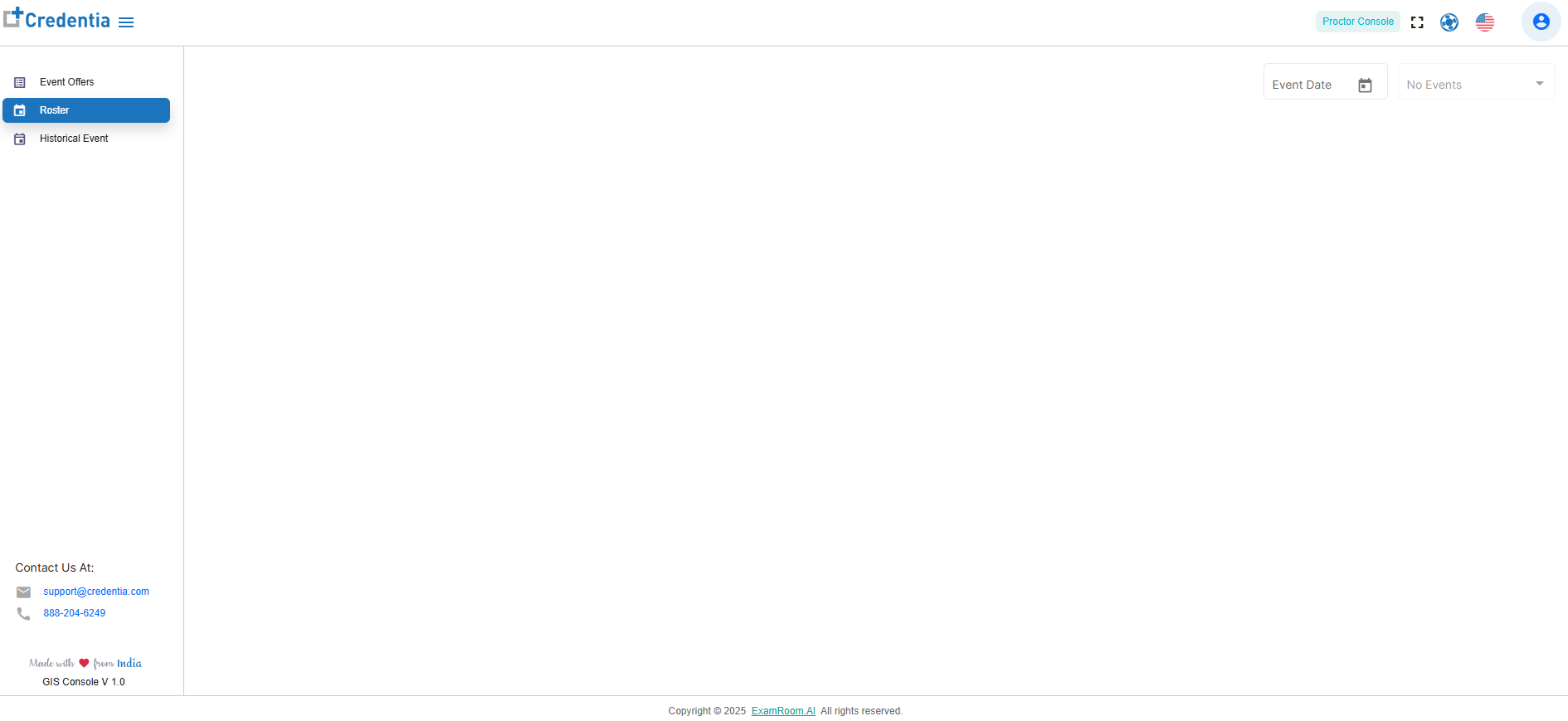
GIS
Note: To enable GIS, follow the steps given below
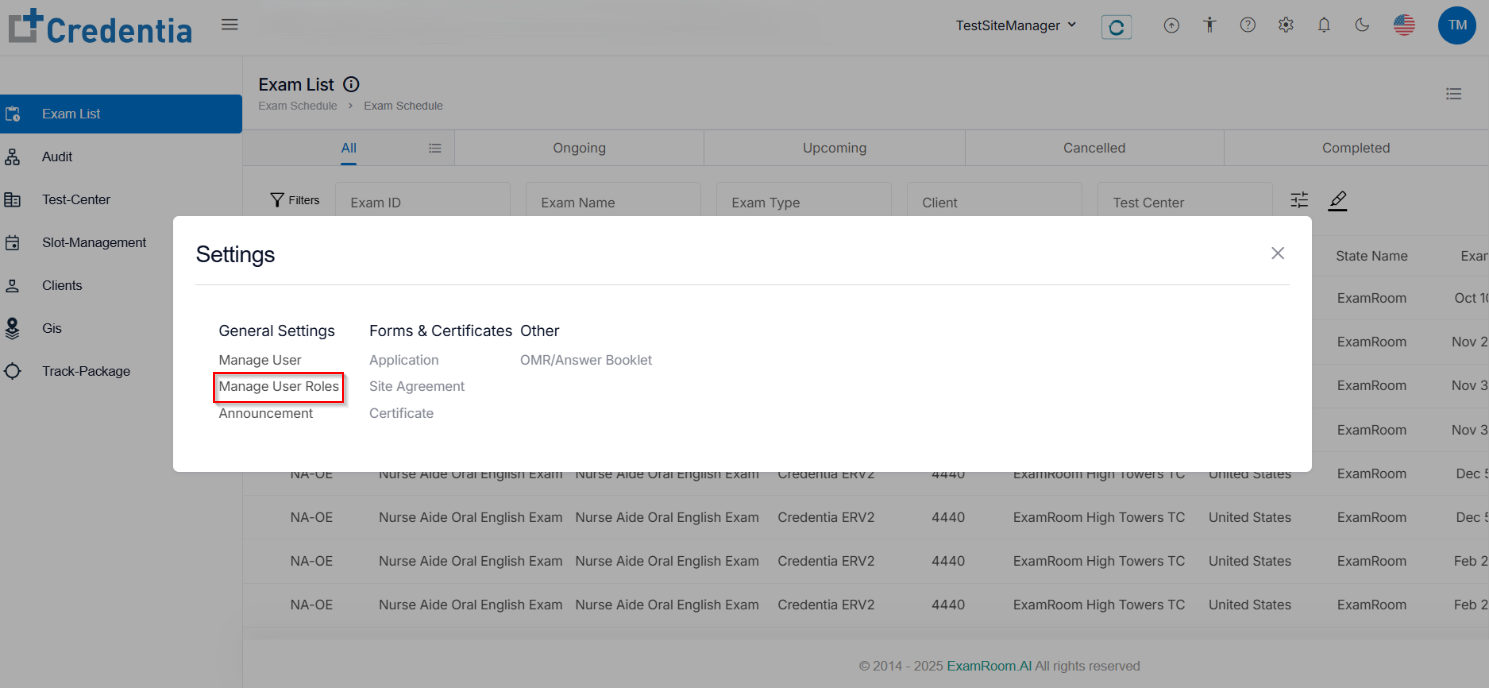
- After logging into the Credentia TSM console, click the Settings icon to open the settings window.
- Click Manage User Roles to update the access of the user.
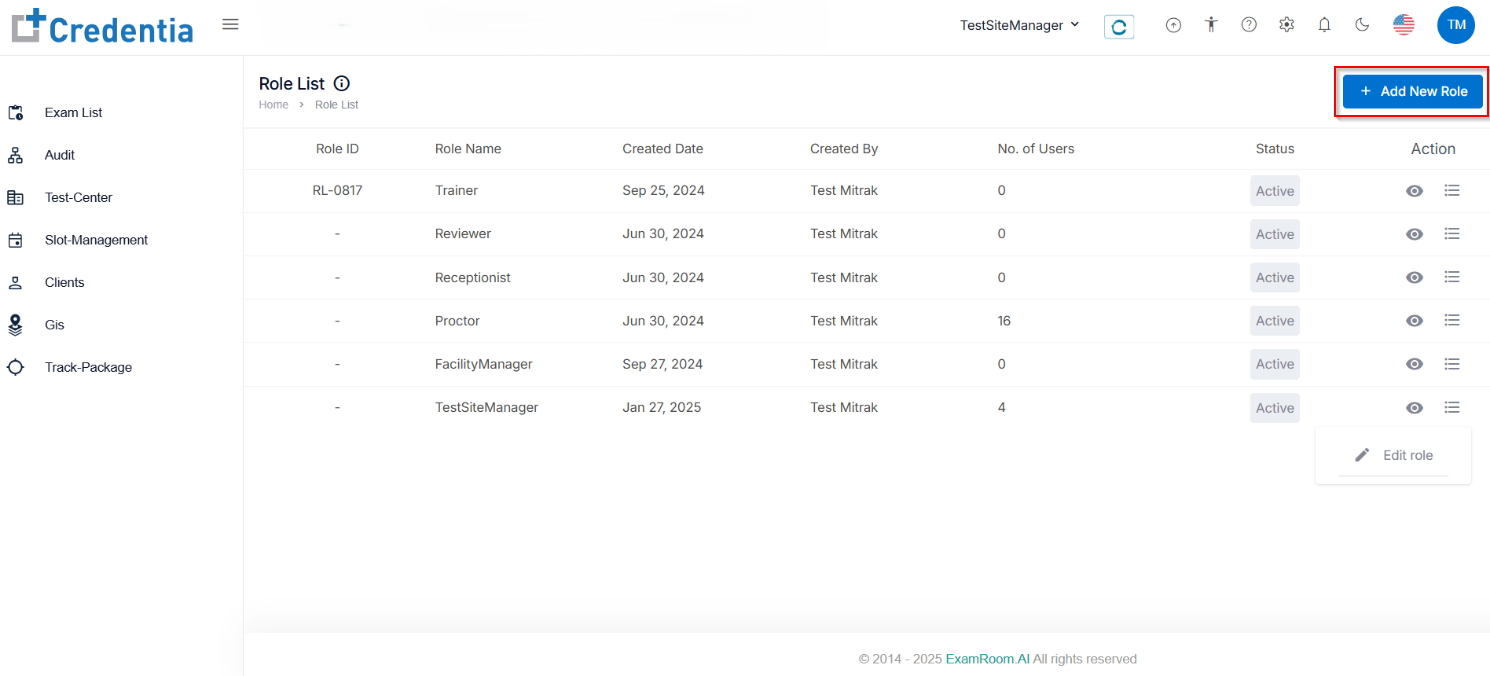
- Select the site manager role from the role list and click the Hamburger icon to edit the access.
- If you wish to add a new site manager, click + Add New Role. Refer to Manage User Roles for more information.
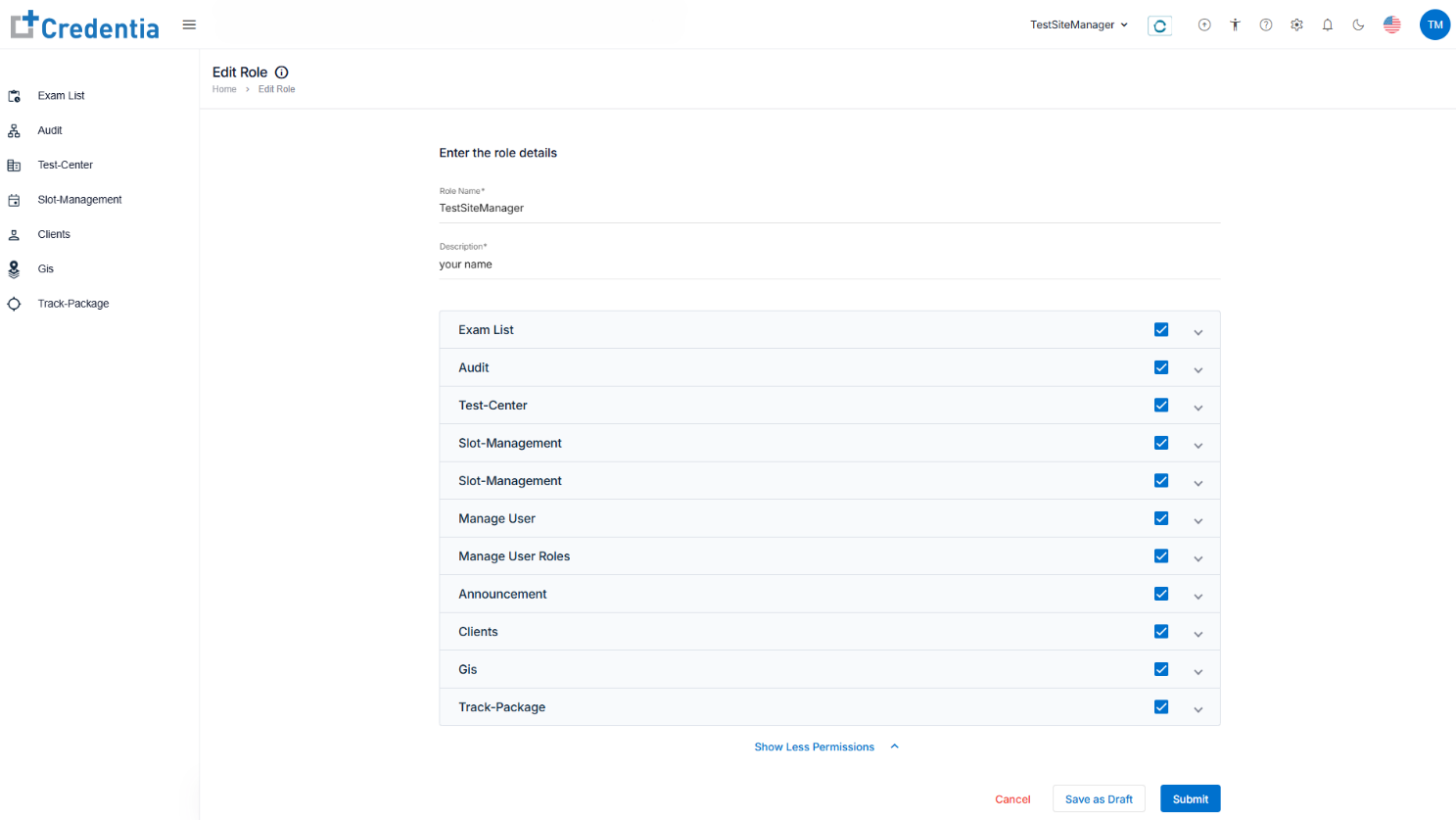
- In the Edit Role, you have a list of permissions for the TSM Platform. Select the GIS checkbox available next to GIS in permissions. Use the See More Permissions option to view the complete list.
- Click Submit to create a new role, Save as Draft to save the application details, or Cancel to go back to the roles list.
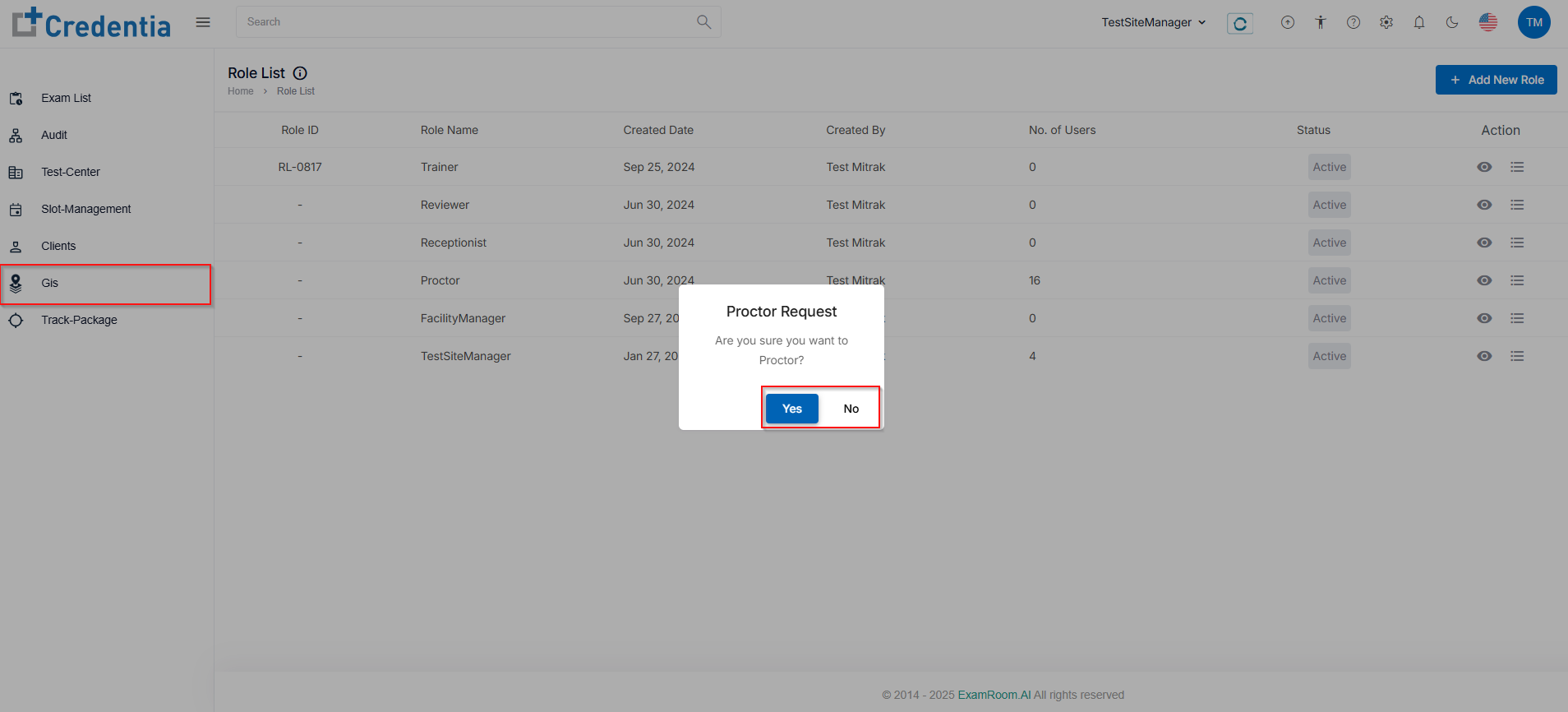
- Once submitted, refresh the page to see GIS on the dashboard.
- GIS is used to view the proctor console.
- Click Yes to redirect to the proctor console or No to cancel the request.
- Refer to the proctor self-help guides and videos to understand more about Proctor Console.