Track Package
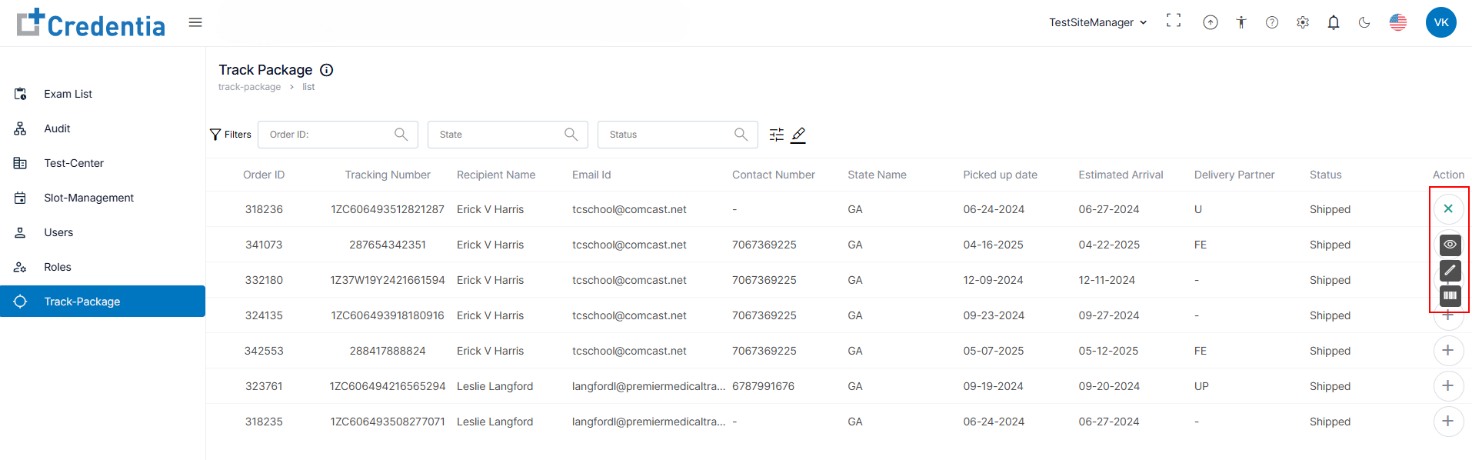
The Track Package option allows you to monitor and manage all shipped exam packages to test centers. Easily view order status, package details, and recorded videos for authentication and shredding. Use filters for quick search and access in-depth information through the action icons.
Note: If the Track Package option is not available to you, follow the instructions below to enable it. If you do not have access to manage user role permissions, please contact your Site Manager to obtain access.
- To enable Track Package, follow the steps given in the View and Edit User Roles section and enable Track Package.
View Track Package Details and Update the Booklet Tracking List
The Track Package is used to check the details of all the packages shipped to the test center.
- Navigate to the Track Package from the side menu.
- Select a shipped tracking number from the list. You can also use the available search filters to find the specific package details from the list.
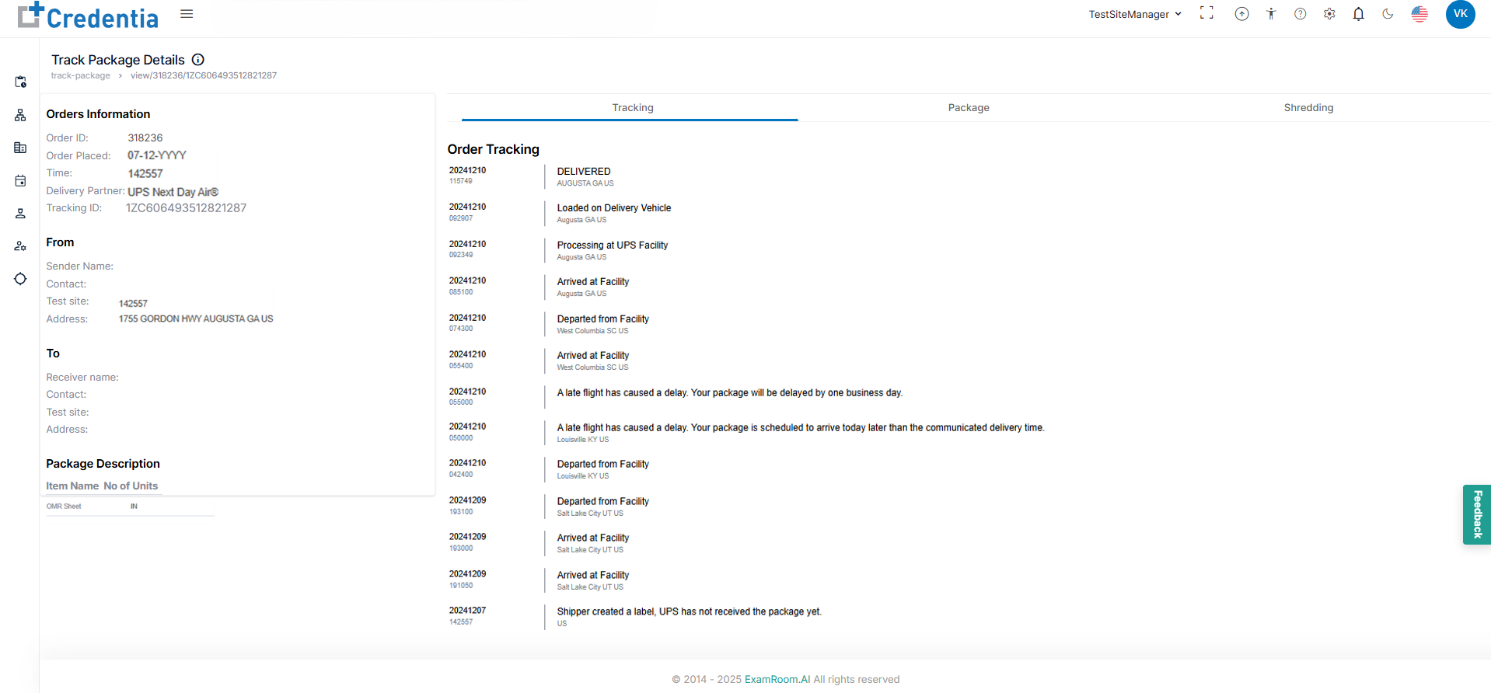
- Under Action, click the view icon to view in-depth package details, such as Order details, Address Information, and Package Description.
- In Track Package Details, the Tracking tab is used to view the status of the package.
- The Package tab is used to view the authenticated package details along with the recorded videos.
- Click the view icon under the action to view the corresponding video.
- The Shredding tab is used to view the damaged package details along with the recorded videos.
- Click the view icon under action to view the corresponding video.
- Click the view icon under action to view the corresponding video.
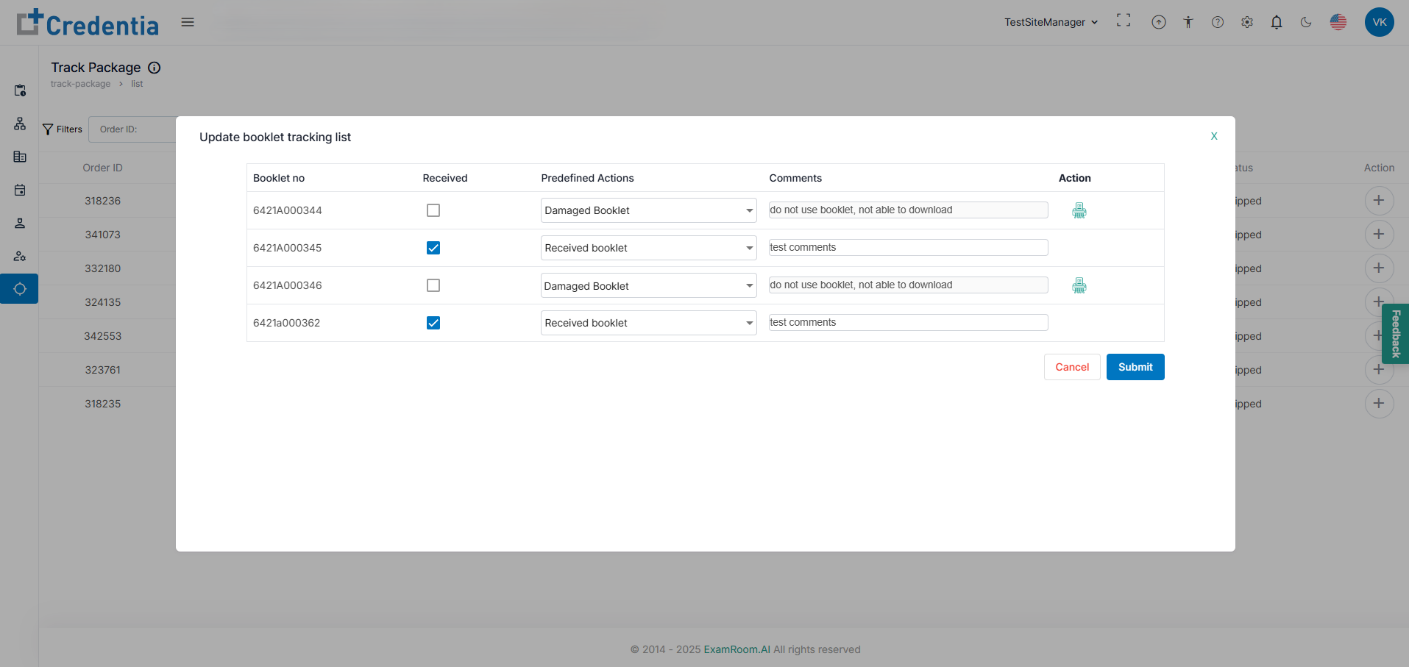
- Click the Edit icon to edit or update the package details.
- Check the booklet thoroughly and update the information accordingly.
- If you receive the damaged booklet, check the received box and click the print icon under action to record the shredding process.
- Add comments if necessary and click Update to upload the video or Cancel to go back.
- After updating, add the necessary comments and click Submit to update the record or Cancel to go back to Track Package.
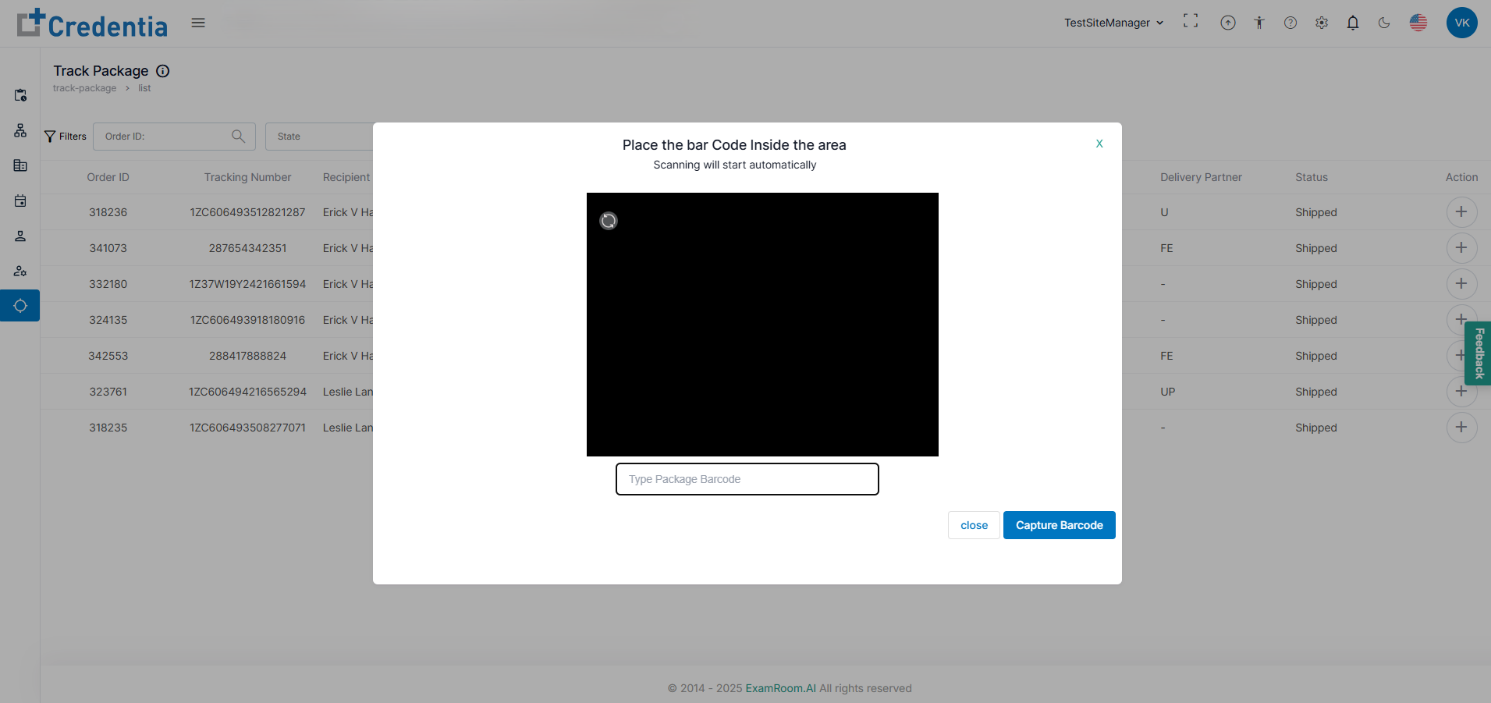
- Click the Scan Barcode icon to authenticate the package.
Note: Allow camera access when using it for the first time.- Use the camera to scan the tracking ID from the package or type it manually in the provided field.
- Click Capture Barcode to authenticate and proceed to Package Recording Video, or click Close to go back to the track package tab.
- In the Package Recording Video, record all the items in the package, select the respective options from the drop-down, and add comments.
- Click Next to proceed with Package Details or Close to end the process.
- In the Package Details, check the booklet thoroughly and fill out the necessary Information.
- If the booklet is damaged, check the received box and click the print icon under action to record the shredding process.
- Add comments if necessary and click Submit to upload the video or Cancel to go back.