Navigate to the Event Requests page to view all created event requests.
Find the event you want to view from the list.
Click the view icon of the event from the action column provided on the right side of the table.
You can use the Event ID filter icon and search for the event.
In events, you can view the following:
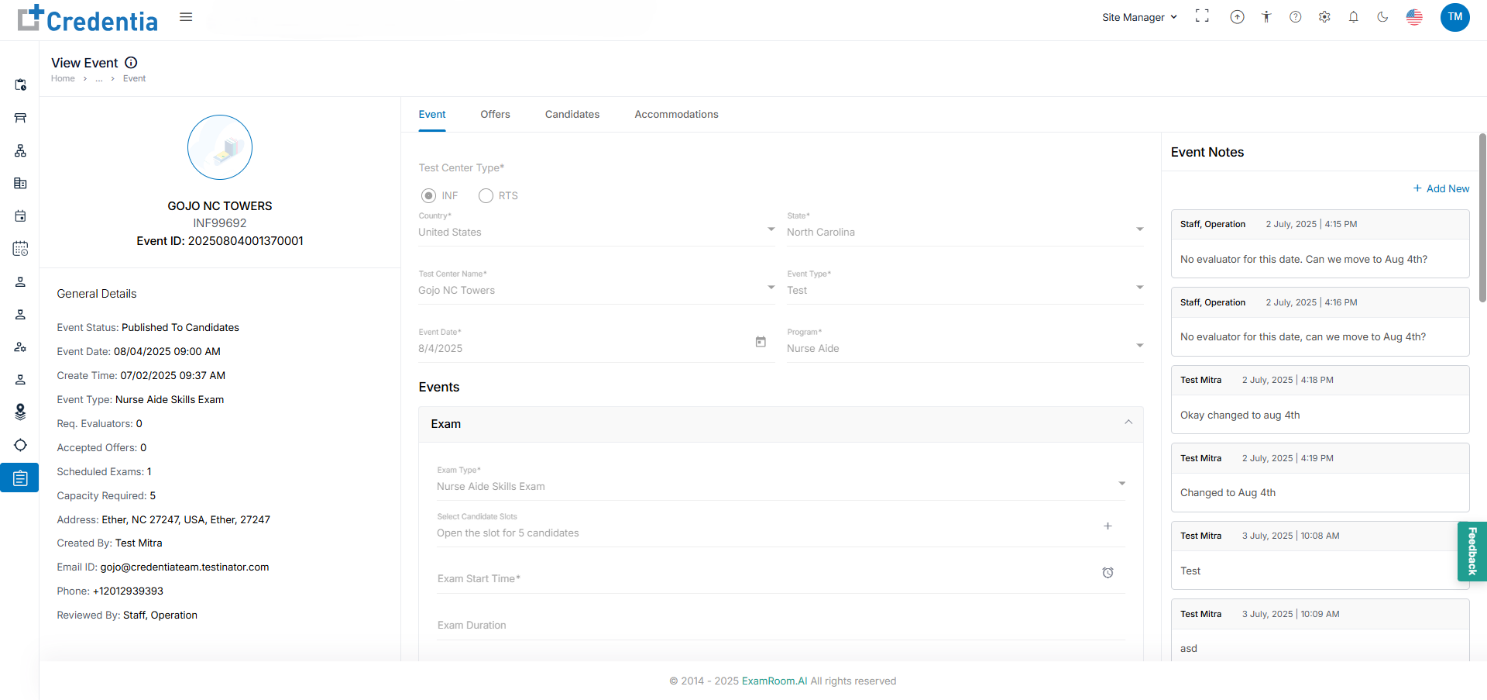
Name of the event and its GeneralInformation on the left side section, including review Event Status, Event Date, Test Center, Event Type, Required Evaluators, Accepted Offers, and Contact details.
Event details are displayed on the Event tab.
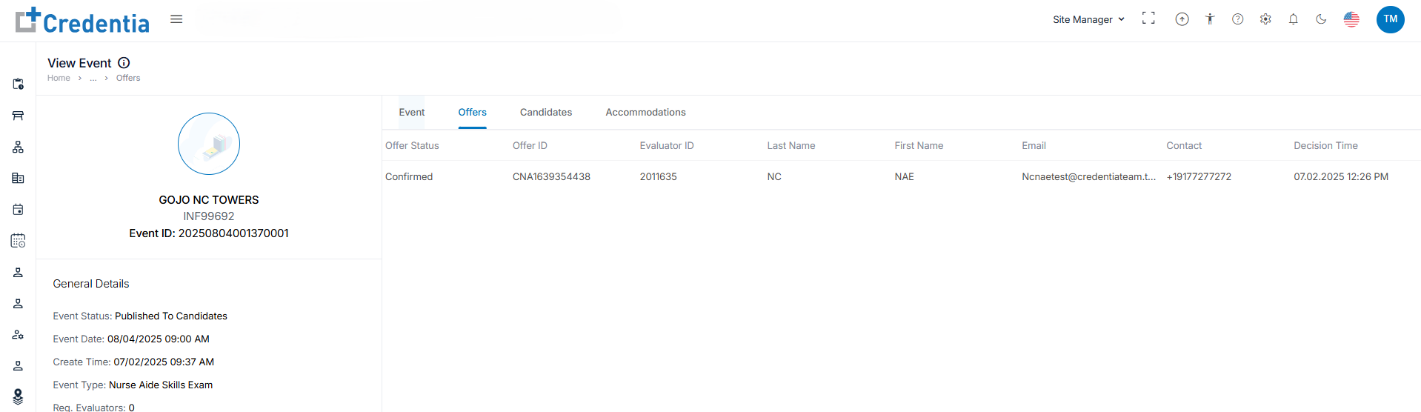
The Offers tab displays the assigned evaluator, their details, and confirmation status.
In the Candidates tab, you can view the list of candidates scheduled for the exam.
In the Accommodations tab, you can see whether any special accommodations are requested.
View or add event notes
In the EventNotes section (right panel), read updates from staff or click Add New to post a note.
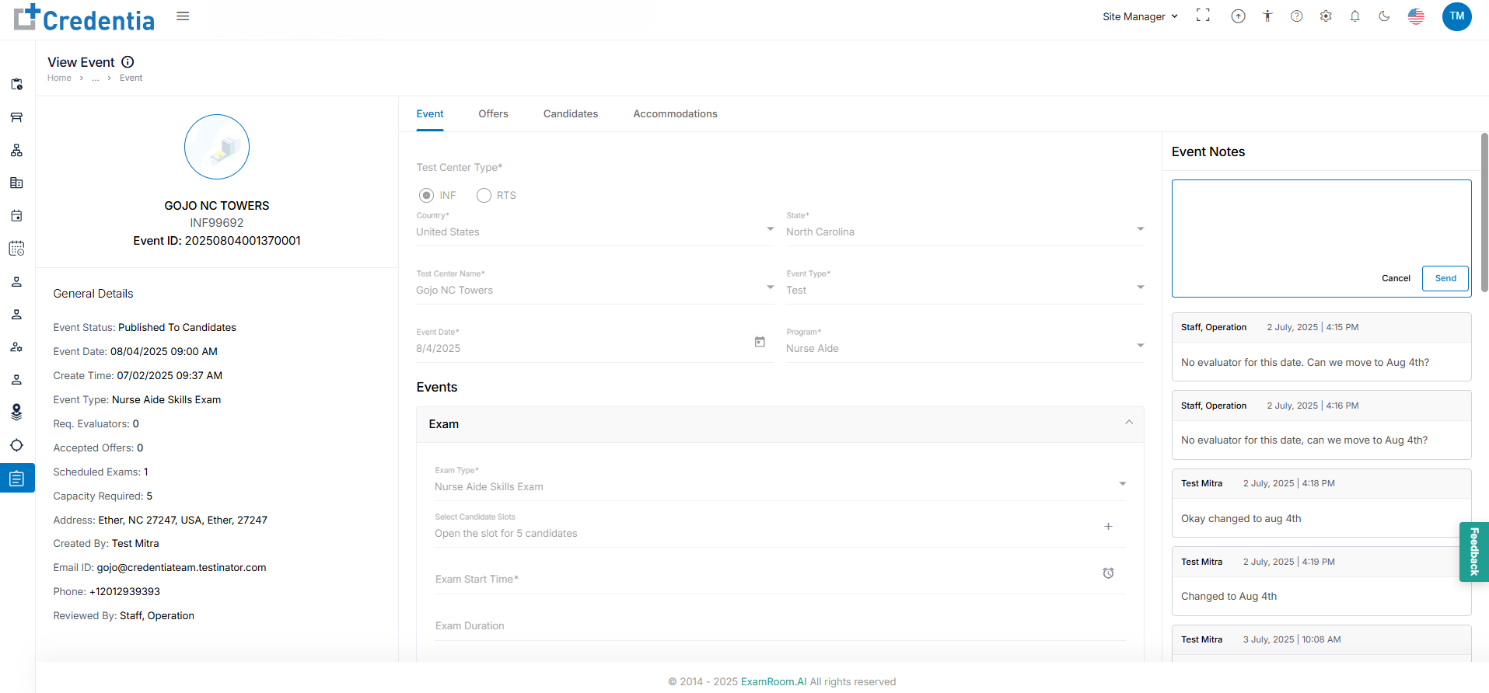
Click the +AddNew option provided at the top right side of the Event Notes section.
Enter the details and click Send to save the notes.