Clients
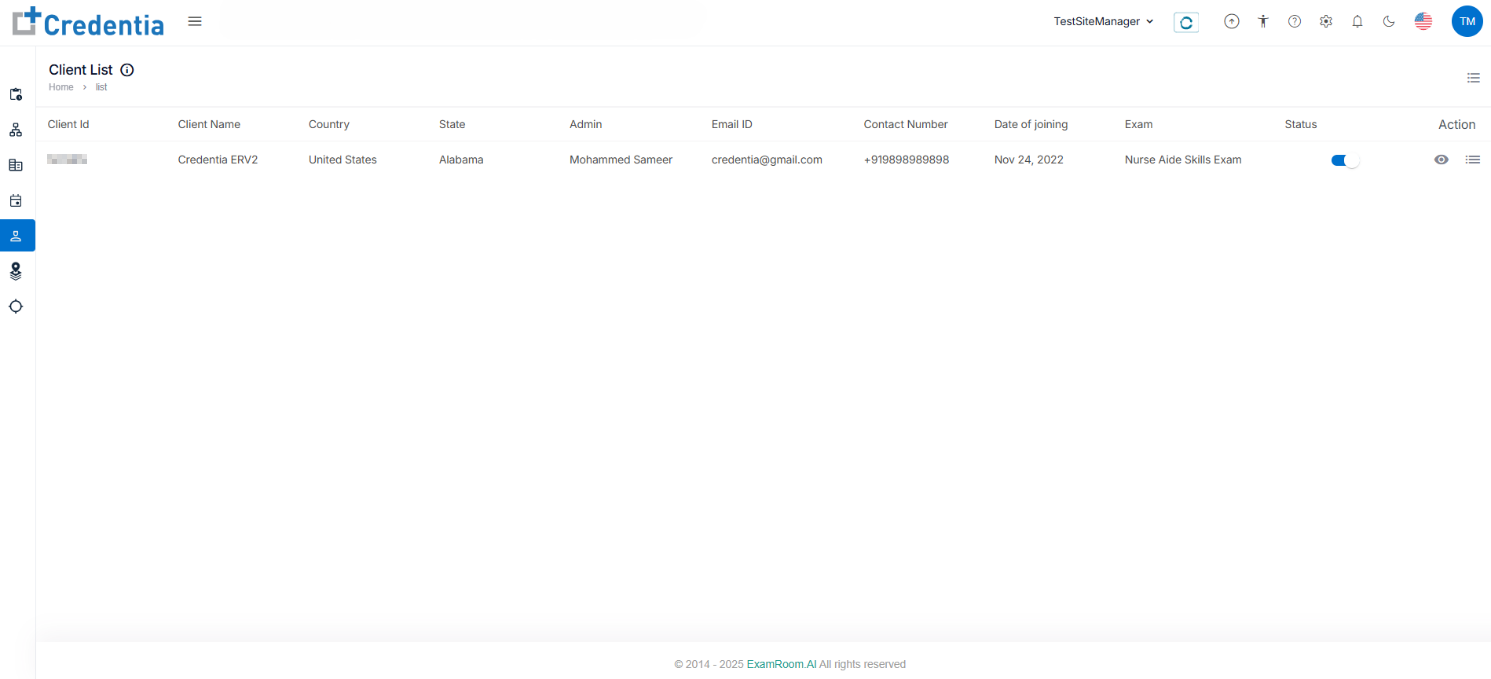
The Site Manager can view the details of the clients who booked the slots with the test center in the Client List.
Note: Click the hamburger icon to customize the display sections.
- Click the view icon under the action tab to view the in-depth client details.
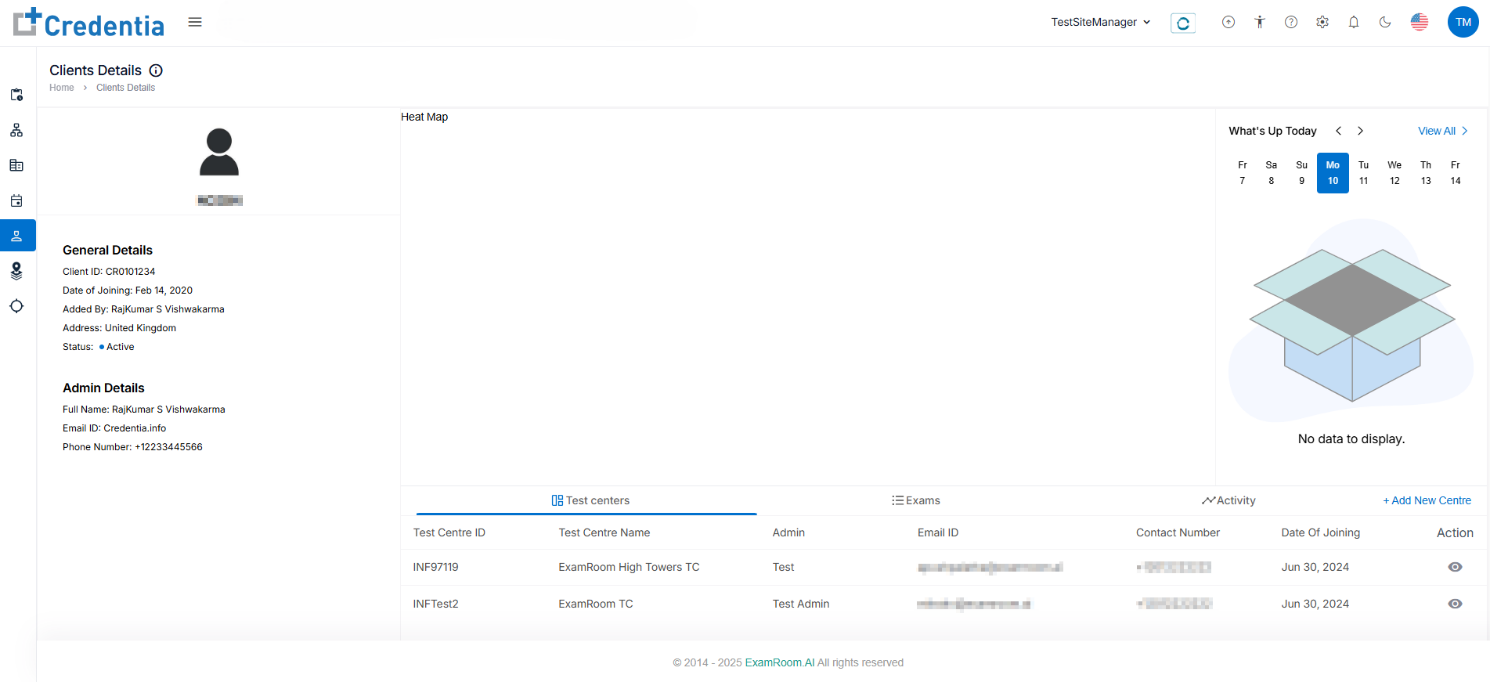
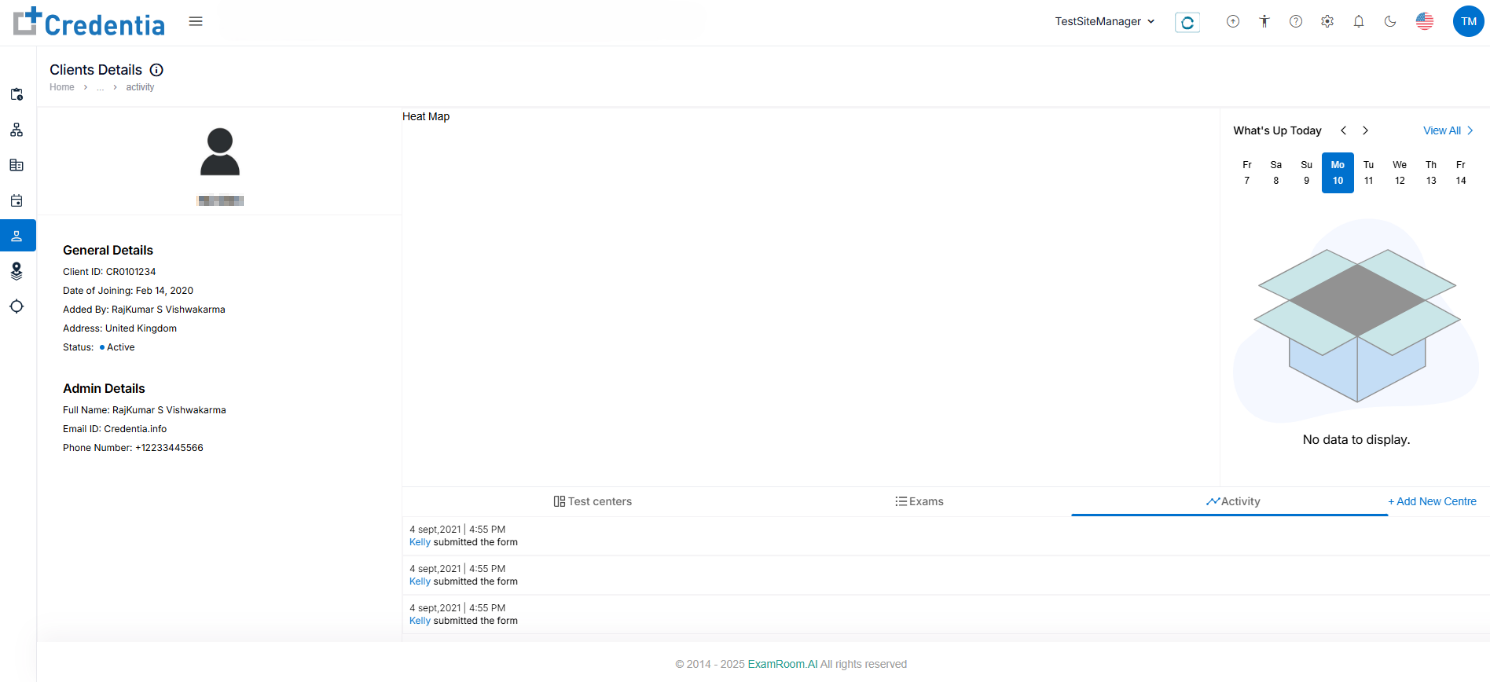
- In the Client Details Tab, the site manager can view the Client Name, General Details, Admin Details, Heat Map, Test Center details, Exam details, Activity, and What’s Up Today.
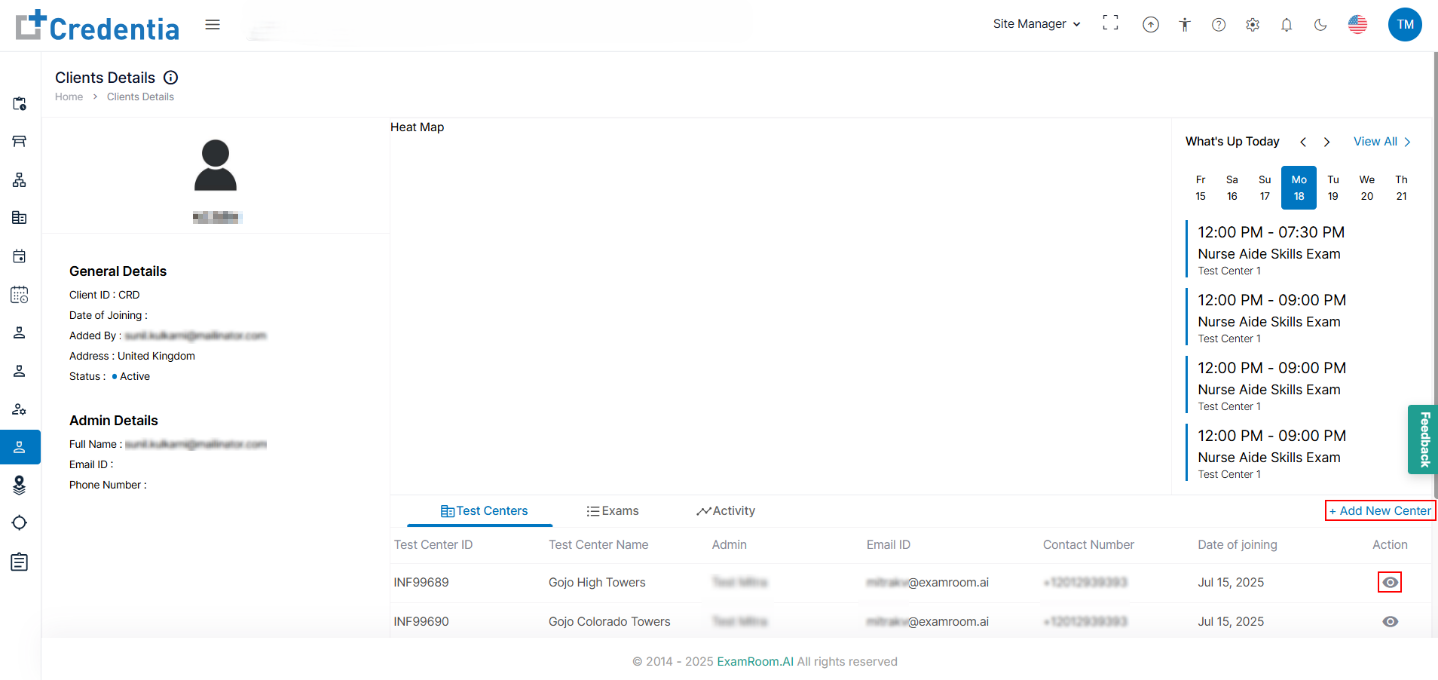
- In the Test Center details, the site manager can view the test center ID, test center name, admin details, email ID, contact number, and date of joining.
- Click the view icon under action to view the in-depth test center details. Refer to Test Center details for more information.
- Click +Add New Center to add a new test center. Refer to the Test Center List section for more information.
- In the Exams tab, the site manager can view all the exam details like Exam ID, Exam Name, Number of Exam, and Exam date.
- Click the view icon under action to view the in-depth exam details.
- In Activity, important actions are recorded with a timeline and can be viewed by the site manager.