Notifications
The Notifications feature lets you view alerts about approvals, status changes, and account activities. You can preview recent notifications or access the full Notifications page to manage them. Notifications can be marked as read individually or in bulk, or deleted, keeping you informed about key activities in the system.
View Notifications
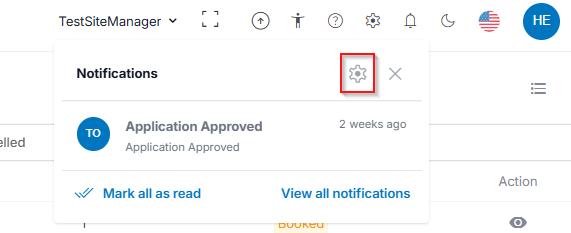
- Click the Notifications icon located in the top-right corner of the menu bar.
- A notification preview panel appears, displaying recent notifications.
- Click View all notifications to open the full Notifications page and read all the notifications.
- Click Mark all as read to mark all notifications as read.
- Click the Close icon in the top-right corner of the pop-up window to close the notifications.

Notifications Page
The Notifications page displays all notifications in two tabs, each with the notification title, description, and time received (for example, “2 weeks ago”).
- All tab shows every notification.
- Unread tab shows only unread notifications.
Mark as Read and Delete
- Select the notification by clicking the checkbox beside it.
- Click Mark as read to mark the selected notification as read.
- Click Delete to delete the selected notifications.
- Click Mark all as read to mark all notifications as read.

Notification Settings
You can customize how you receive notifications from the system, and settings are applied automatically when toggled.
Access Notification Settings
- Click the Notifications icon on the top-right menu.
- Click the Notification Settings icon in the notification panel.
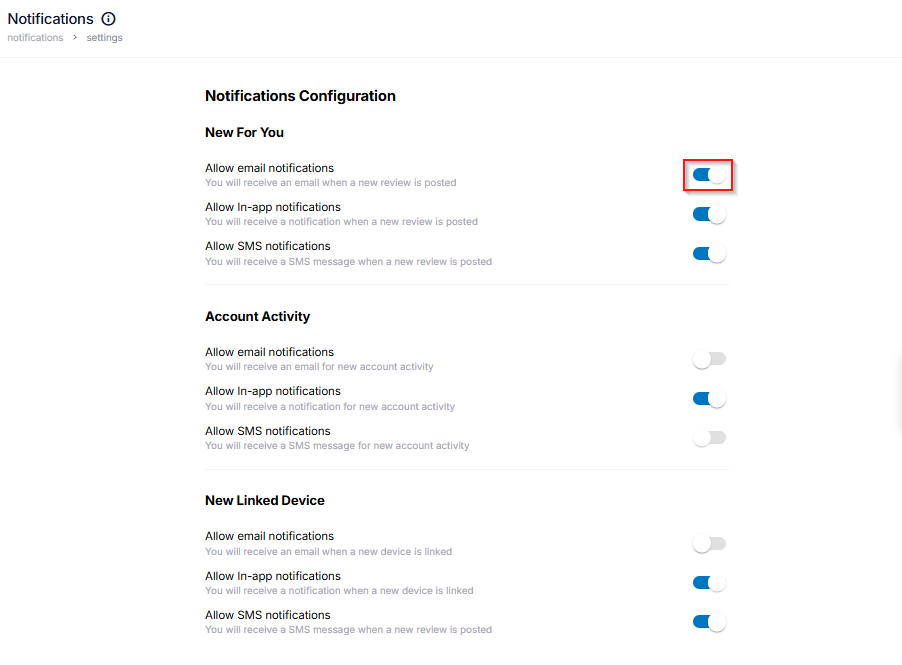
- In the Notifications Configuration page, you have the following Available Categories:
- New for You: Notifications when a new review or update is posted.
- Account Activity: Notifications for account changes or actions.
- New Linked Device: Notifications when a new device is connected to the account.
- Toggle each option On or Off based on your preference.
Configure Notification Preferences
The page is grouped into notification categories. For each category, you can turn the following options on or off:
- Allow email notifications: You will receive an email for the selected activity.
- Allow in-app notifications: You will receive an alert inside the application.
- Allow SMS notifications: You will receive a text message to your registered phone number (if SMS is supported).