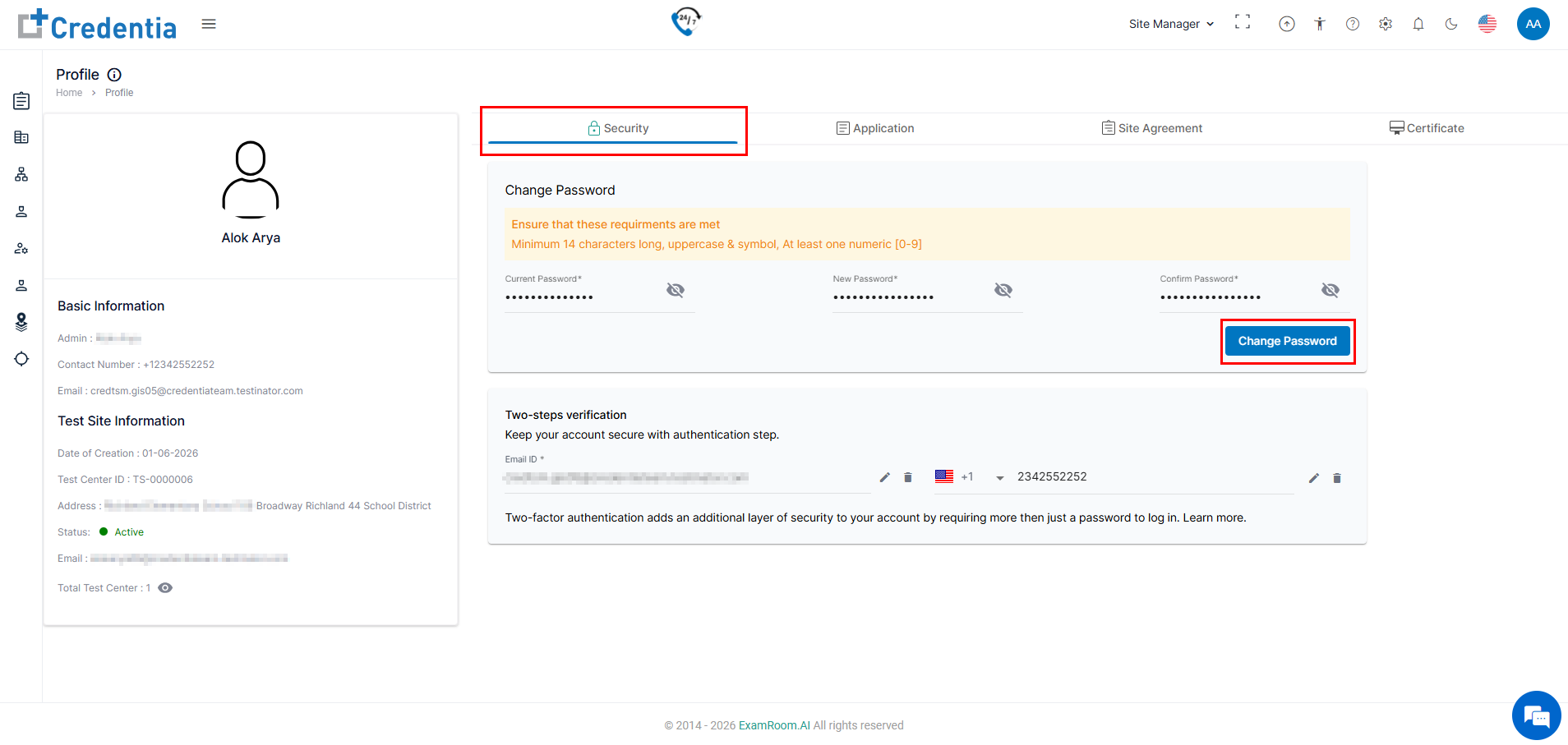
Manage Profile (Change Password)
You can update your account password from the Profile section.
- Click the Manage Profile icon in the top-right corner of the screen.
- Select Profile from the dropdown menu.
- On the Profile page, select the Security tab and in the Change Password section, enter the following:
- Current Password: Your existing password. (If you do not have access to your account and have lost your current password, see "Forgot Password" to reset it.)
- New Password: Enter the new password. (Ensure you meet the password requirements)
- Confirm Password: Re-enter the new password.
- Click the Change Password button to save the new password.
- Ensure the password requirements are met:
- Minimum of 14 characters.
- Must include uppercase letters and symbols.
- Must include at least one numeric digit (0–9).
- Two-Step Verification (Optional).
- Two-step verification to add extra security. (Two-step verification is activated from the admin).
- You can also update your phone number if needed.