Edit or Update Test Center Availability
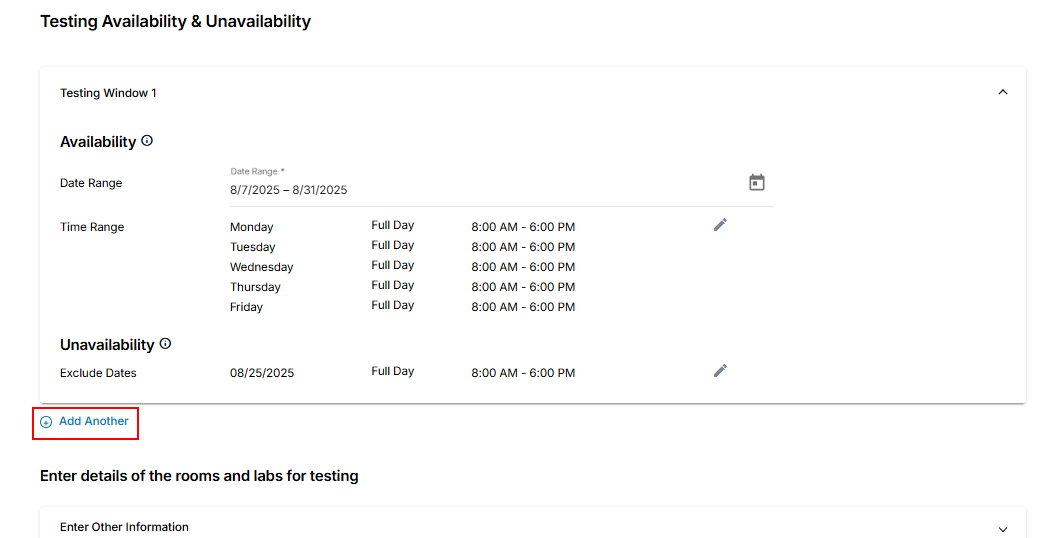
In the Additional Information section, you can modify required fields with the necessary details, including Testing Availability & Unavailability. In the Testing Availability & Unavailability section, you can specify the test center's operations Date and Time Range and add unavailability details.
To modify or update the test center availability, follow the steps below:
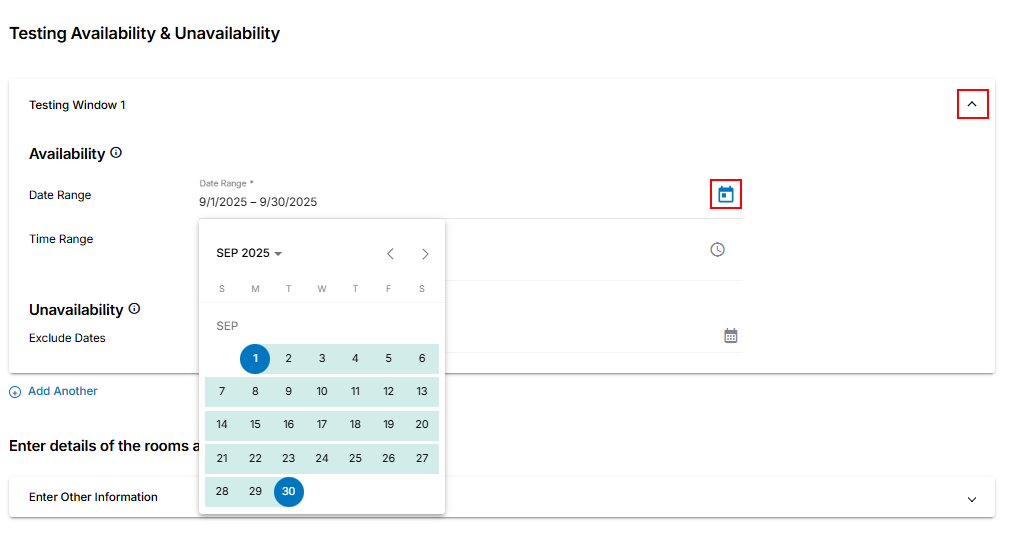
- Click the Testing Window 1 dropdown provided under Testing Availability & Unavailability.
- Click the Date Range Calendar icon and choose the upcoming availability date range from the calendar.
Note:- You can exclude weekly off days when configuring the time range and mark any holiday dates as unavailable under unavailability.
- It is recommended to maintain testing availability for a minimum of 180 days in advance.
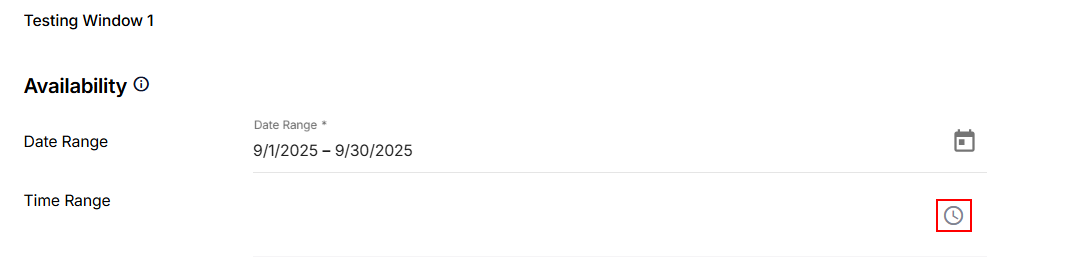
- Click the Time Range Clock icon and select the availability time range.
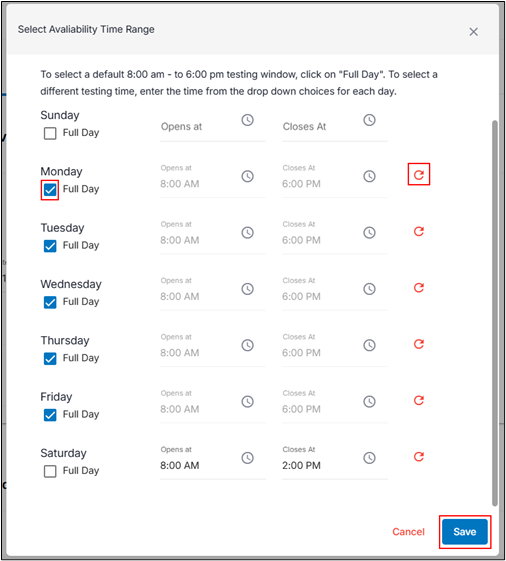
- Click the Check Box to choose the default full-day testing window. To select a different testing time, choose from the drop-down options for each day. To exclude weekly days off, keep this option unchecked and do not specify any testing time ranges.
- Click Save after you have added the time range.
- Click Save after you have added the time range.
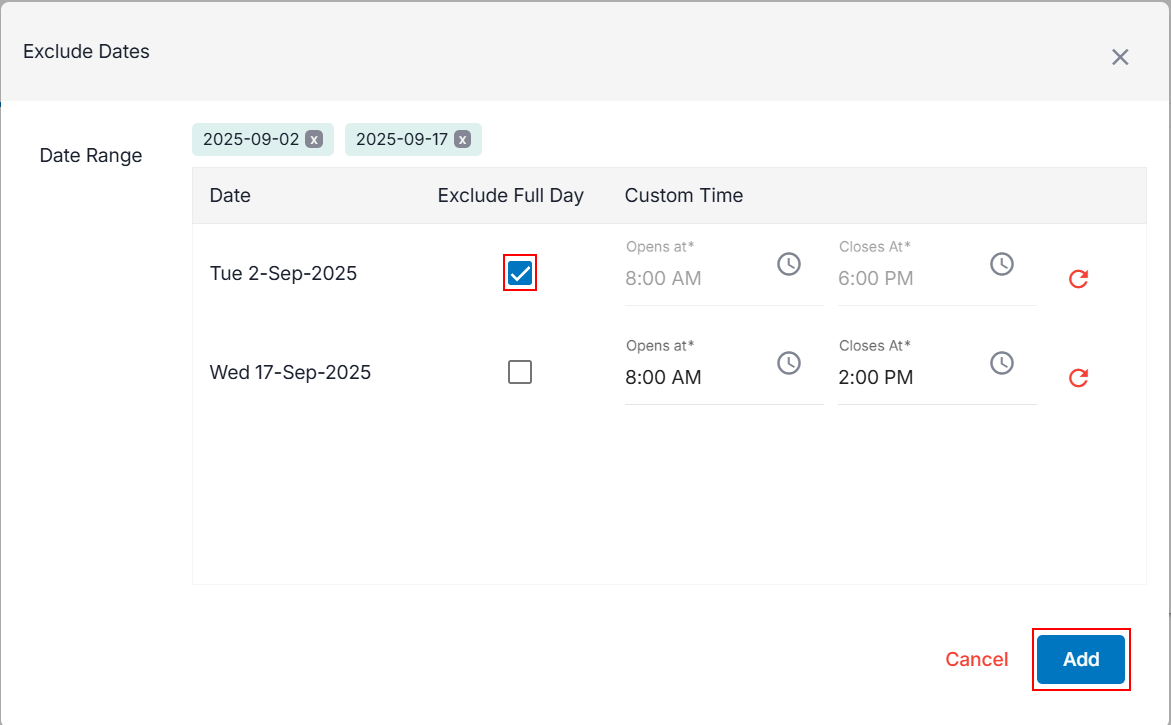
- Exclude Date option provided under Unavailability and choose the dates and times of any pre-planned closure of test center operations. You will be able to exclude dates within the specified availability date range.
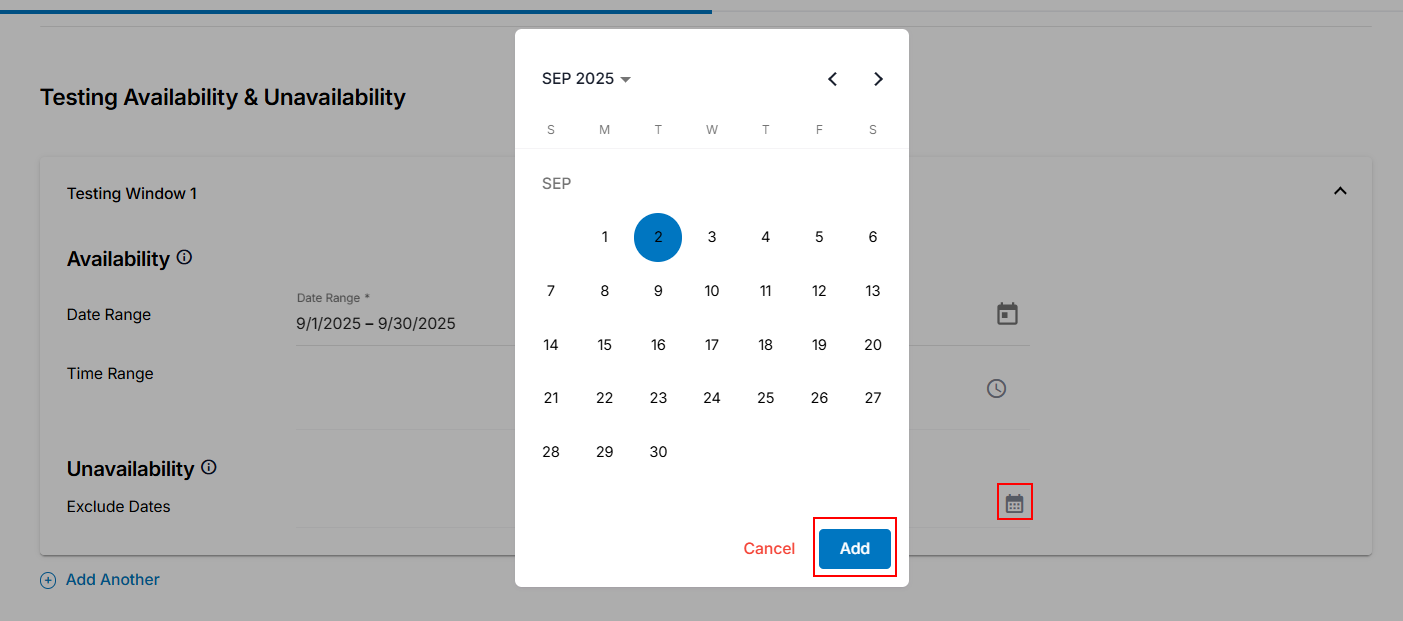
- Click the Exclude Date Calendar icon.
- To select a specific date, click on the desired Date in the calendar. Clicking the same date again will clear the selection.
- Click the Add button or click Cancel to discard.
- Click the Check Box to choose the default full-day testing window.
- To select a different testing time, set the time in the Opens at and Closes At fields using the drop-down menu.
- Click the Add button.
- If necessary, click Add Another to include additional testing dates for availability and unavailability.
- After updating, go to the last page and click Submit to finalize and submit the required information changes. To learn more about updating or changing other details in the test center, follow the steps outlined in the Add Test Center section.