Highlight Panel
The fields in the Highlight Panel of the screen correspond to the application administration, having icons and descriptions described in the table below.
| Icon | Type | Description |
 | Zen Mode | Click to view the console in full-screen mode. |
 | Collapse toolbar | Click to close the toolbar. |
 | Accessibility | Click to enable the custom accessibility options as required. |
 | Help | Click the help icon to view all the self-help guides and videos. |
 | Settings | Click settings to create and manage the user roles and announcements. |
 | Notifications | Click to view all the notifications. |
 | Dark Mode | Click to switch between light and dark mode. |
 | Localization | Click to switch between other languages. |
 | Manage Profile | Click to view the options to manage your account. |
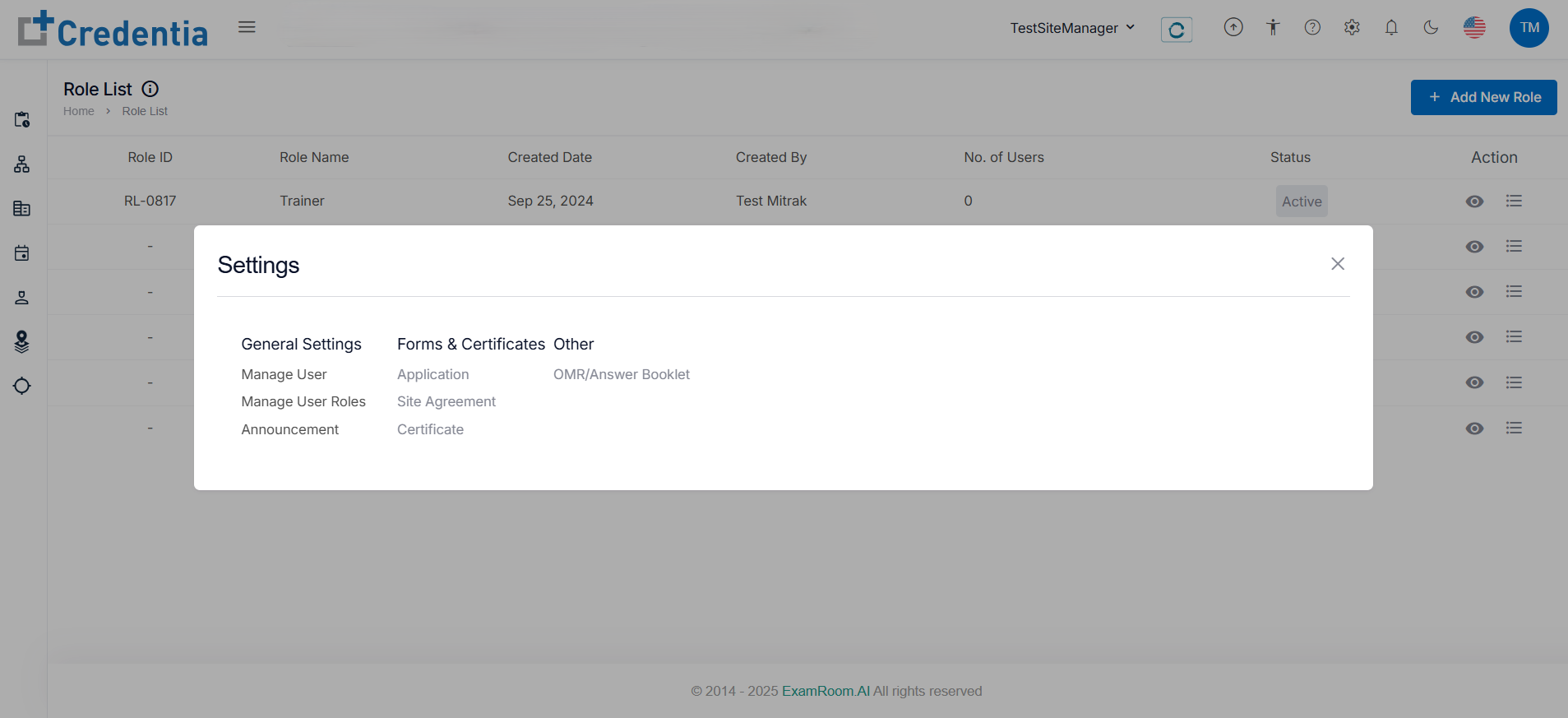
Settings
In the General Settings section, you will find options such as Manage User, Manage User Role, Announcements, and more, depending on your role’s permissions.
Click the Settings icon on the toolbar, which can be accessed from any part of the platform. After logging in, it appears at the top of the page.
- In the Manage User option, add a new user and manage the existing user to the test center.
- In the Manage User Roles option, create new roles and update the user roles of the existing users.
- In the Announcements option, create and publish announcements to the test centers.